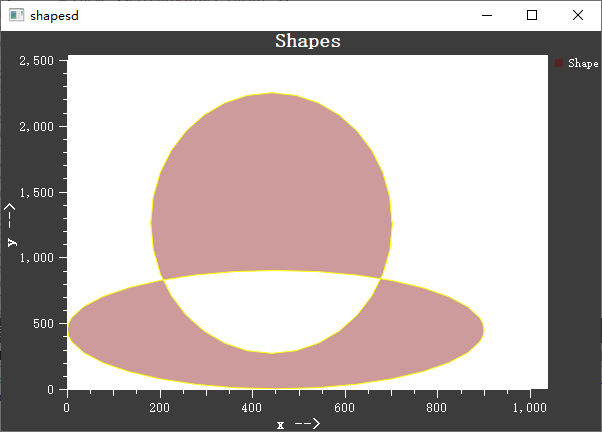
Shape Item - QwtPlotShapeItem
QwtPlotShapeItem is used to display arbitrary shapes on a plot, supporting rectangles, circles, polygons, paths, and other geometric figures. Shapes are positioned using plot coordinates and automatically adjust with axis transformations.
Key Features
Shapes can be any geometry described by QPainterPath, including rectangles, circles and polygons. Positions use plot coordinates, so shapes scale with the axes. Fill, border and color are configurable, and polygon clipping (ClipPolygons) with point weeding (setRenderTolerance()) reduces rendering cost.
Basic Concepts
Shape Positioning
QwtPlotShapeItem shapes are positioned using plot coordinates, not pixel coordinates:
1 2 3 4 5 6 | |
Paint Attributes and Legend Modes
QwtPlotShapeItem has no fill-mode setting; rendering and legend behavior are controlled by a paint attribute and a legend mode instead:
| Setting | Enum Value | Description |
|---|---|---|
| Paint attribute | ClipPolygons |
Clip polygons before painting them; speeds up deep zoom, but converting curves/ellipses to polygons may hurt performance for such paths |
| Legend mode | LegendShape |
Display a scaled down version of the shape on the legend |
| Legend mode | LegendColor |
Display a filled rectangle on the legend |
Usage
1. Creating a Rectangle Shape
The shape item is constructed with a legend title, and its geometry is handed to setShape() as a QPainterPath; for a plain rectangle the setRect() convenience overload also exists. Path coordinates are interpreted in the plot coordinate system, while setPen() / setBrush() style the outline and fill. The example below adds a semi-transparent rectangular region to a plot:
1 2 3 4 5 6 7 8 9 10 11 12 13 14 15 16 17 18 19 20 | |
2. Creating a Circle Shape
Circles and ellipses are built with QPainterPath::addEllipse(), which takes a center point plus horizontal and vertical radii, and are then assigned via setShape(). The example below draws a semi-transparent red circle of radius 20 at plot coordinates (50, 50):
1 2 3 4 5 6 7 8 9 10 | |
3. Creating a Polygon Shape
An arbitrary polygon is described by a sequence of moveTo() / lineTo() calls closed with closeSubpath(); alternatively setPolygon() accepts a QPolygonF directly. The example below builds a closed triangle and styles it with a green border and gray fill:
1 2 3 4 5 6 7 8 9 10 11 12 13 | |
4. Style Configuration
Appearance is tuned through setRenderHint() (e.g. RenderAntialiased, inherited from QwtPlotItem), setPen() (dashed outlines via Qt::DashLine), and setBrush(); the brush also accepts Qt pattern fills such as Qt::FDiagPattern for hatching. Performance options are the ClipPolygons paint attribute (setPaintAttribute()) and point weeding via setRenderTolerance(); there is no fill-mode setting. The snippet below combines these options:
1 2 3 4 5 6 7 8 9 10 11 12 13 14 15 | |
Core Methods Summary
| Method | Description |
|---|---|
setShape() |
Set the shape as a QPainterPath |
setRect() |
Set the shape as a rectangle (convenience) |
setPolygon() |
Set the shape as a polygon (convenience) |
setPen() |
Set border pen |
setBrush() |
Set fill brush |
setPaintAttribute() |
Toggle ClipPolygons clipping |
setRenderTolerance() |
Set the weeding tolerance for path simplification |
setLegendMode() |
Set legend display (LegendShape / LegendColor) |
setRenderHint() |
Set render hint (inherited from QwtPlotItem) |
Tip — Application Scenarios
- Region annotation
- Background areas
- Clip region marking
- Custom geometric shapes
Example — Related Examples
- Shape demo:
playground/shapes
Screenshot of the shape demo: