OpenGL Canvas
QWT provides hardware-accelerated rendering through an OpenGL canvas. QwtPlotOpenGLCanvas is the canvas class, and using it requires the CMake configuration below.
CMake Configuration
If you use OpenGL features, add the OpenGL module to your CMake configuration:
1 2 3 4 5 6 7 8 9 10 11 12 13 14 15 16 | |
QwtPlotOpenGLCanvas
QwtPlotOpenGLCanvas is a canvas widget derived from QOpenGLWidget. It does not build a native shader/VBO pipeline for curves: all plot items are still painted by QPainter (Qt's OpenGL2 paint engine) into an offscreen FBO, then reach the screen through MSAA resolve, blit and texture compositing. Polyline tessellation happens on the CPU while the GPU only does the filling. Its advantage is concentrated in the item-painting segment of heavy multi-curve, large-canvas scenes, at the cost of a fixed per-frame compositing overhead; for single-curve small datasets or incremental-repaint scenarios the default QwtPlotCanvas is the steadier choice. For quantitative evidence see the technical report Raster vs. OpenGL Rendering Pipelines.
Basic Usage
Replace the default canvas with the OpenGL canvas:
1 2 3 4 5 6 7 8 9 10 11 12 13 14 15 16 | |
Custom Surface Format
You can pass a custom QSurfaceFormat for advanced OpenGL configuration:
1 2 3 4 5 6 | |
Canvas Properties
QwtPlotOpenGLCanvas imitates the QFrame API even though it is not derived from QFrame:
| Property | Type | Description |
|---|---|---|
frameShadow |
QFrame::Shadow |
Frame shadow style (Plain, Raised, Sunken) |
frameShape |
QFrame::Shape |
Frame shape (NoFrame, Box, Panel, etc.) |
lineWidth |
int |
Width of the frame line in pixels |
midLineWidth |
int |
Width of the middle line for Panel shape |
borderRadius |
double |
Border corner radius for rounded borders |
QwtPlotCanvas Has No OpenGL Buffer Attribute
QwtPlotCanvas itself offers no OpenGL paint mode: its PaintAttribute enum only contains BackingStore, Opaque, HackStyledBackground and ImmediatePaint, so the only entry point to hardware acceleration is switching to QwtPlotOpenGLCanvas wholesale. What you can tune on the raster canvas are the caching and refresh attributes:
1 2 3 4 | |
Note
BackingStoreserves overlays andQwtPlotDirectPainterincremental repaints; in full-frame replot benchmarks, disabling it saves one pixmap allocation and blit. Note thatQOpenGLWidgetswitches its entire top-level window onto the OpenGL compositing path, so watch the compositing cost when many regular widgets are mixed in. For quantitative evidence see the technical report.
When to Use OpenGL Canvas
| Scenario | Recommendation |
|---|---|
| Static or small datasets (<10k points) | Default QwtPlotCanvas is sufficient |
| Single-curve large datasets (e.g. 100k–5M points) | Default QwtPlotCanvas is steadier — on integrated GPUs measurements show GL is actually ~1.1–1.7x slower |
| Heavy multi-curve scenes (≥10 curves and ≥1M total samples) or when antialiasing is needed | QwtPlotOpenGLCanvas — wins in the item-painting segment, and AA is nearly free |
| Real-time streaming data (incremental repaints) | Default QwtPlotCanvas + QwtPlotDirectPainter — the DirectPainter path on the GL canvas shows bimodal, unstable frame times and cannot be relied on |
| Mixed widget UI with complex layouts | Default QwtPlotCanvas, avoiding the whole top-level window switching to the OpenGL compositing path |
For selection criteria and measured data see the technical report Raster vs. OpenGL Rendering Pipelines: End-to-End Frame-Time Breakdown and Selection Criteria.
Example — Related examples
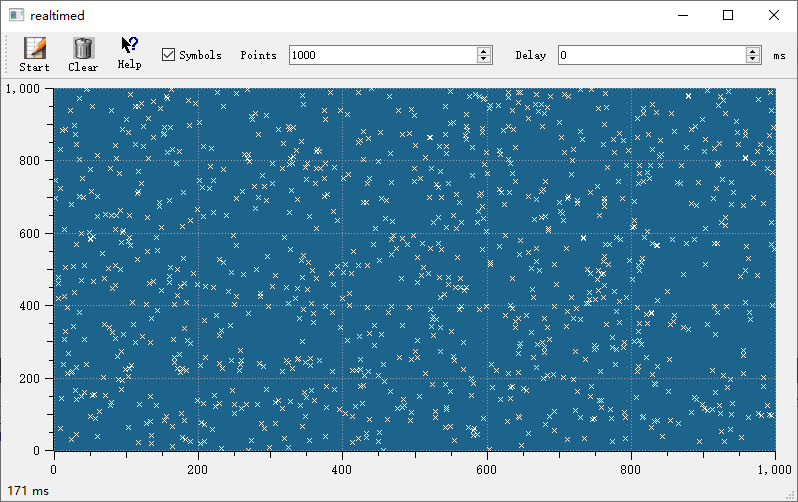
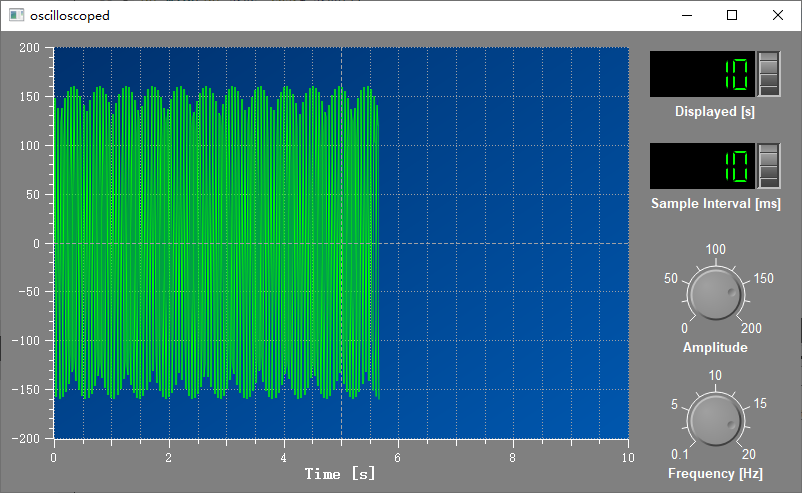
examples/2D/realtimefor real-time plotting with high data throughputexamples/2D/oscilloscopefor oscilloscope-style waveform display
Screenshots of real-time plotting and oscilloscope: