Curve Plot - QwtPlotCurve
QwtPlotCurve is the central plot-item class in Qwt. It draws data curves in a 2D coordinate system and handles line, step, stick and dot styles, symbols at each sample, curve fitting, fills between the curve and a baseline, and legend appearance.
Key Features
- Line, step, stick and dot drawing modes
- Symbols drawn at data points
- Spline-based curve fitting
- Render hints for large data sets
- Fill between the curve and a baseline
- Control over the curve's legend icon
Basic Concepts
Curve Style Types
QwtPlotCurve supports the following drawing styles:
| Style | Enum Value | Description |
|---|---|---|
| No curve | NoCurve |
Show symbols only, no connecting lines |
| Lines | Lines |
Connect data points with straight lines (default) |
| Sticks | Sticks |
Draw vertical/horizontal lines from baseline |
| Steps | Steps |
Step function style connection |
| Dots | Dots |
Draw points only (more efficient than NoCurve + Symbol) |
Curve Attribute Flags
| Attribute | Enum Value | Description |
|---|---|---|
| Inverted | Inverted |
Steps style draws from right to left |
| Fitted | Fitted |
Enable curve fitting (requires a curve fitter) |
Class Inheritance
The diagram below shows where QwtPlotCurve sits in the class hierarchy: it inherits plot-item behavior such as attach() and setTitle() from QwtPlotItem, series drawing from QwtPlotSeriesItem, and data storage from QwtSeriesStore<QPointF>, which is where setSamples(), sample() and size() come from:
classDiagram
    class QwtPlotItem {
        +attach(plot)
        +setTitle()
        +setRenderHint()
    }

    class QwtPlotSeriesItem {
        +drawSeries()
        +boundingRect()
        +data()
    }

    class QwtSeriesStore~QPointF~ {
        +setSamples()
        +sample(i)
        +size()
    }

    class QwtPlotCurve {
        +setStyle(CurveStyle)
        +setPen()
        +setBrush()
        +setSymbol()
        +setBaseline()
        +setCurveFitter()
        +setCurveAttribute()
    }

    QwtPlotItem <|-- QwtPlotSeriesItem
    QwtPlotSeriesItem <|-- QwtPlotCurve
QwtSeriesStore <|-- QwtPlotCurveUsage
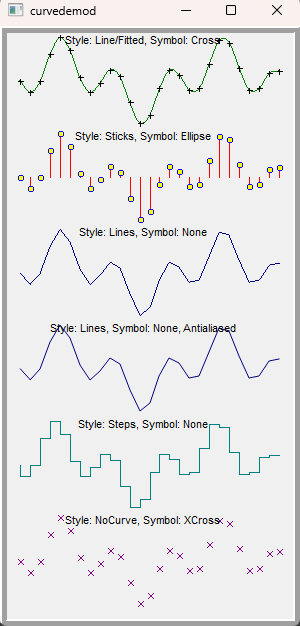
The curve plotting example is located at: examples/2D/curvedemo, showcasing multiple curve styles. Screenshot below:
1. Creating a Basic Curve
The most basic way to draw a curve:
1 2 3 4 5 6 7 8 9 10 11 12 13 14 15 16 17 18 19 20 21 22 23 24 25 26 27 28 29 30 31 32 | |
2. Setting Data
QwtPlotCurve provides multiple methods for setting data:
1 2 3 4 5 6 7 8 9 10 11 12 13 14 15 16 17 18 19 | |
Warning — setRawSamples Considerations
When using
setRawSamples(), the curve does not copy the data but directly references the provided arrays. You must ensure:
1. The arrays remain valid for the lifetime of the curve
2. The array contents should not be modified (unless you understand the consequences)
3. Do not deallocate the arrays before the curve is destroyed
3. Curve Style Configuration
Lines Style
This is the most commonly used style, connecting data points with straight lines:
1 2 | |
Enabling the Fitted attribute allows drawing smooth curves:
1 2 3 4 5 6 7 8 | |
Steps Style
Step function style for displaying discrete data changes:
1 2 3 4 5 | |
Steps style comparison:
1 2 3 4 5 | |
Sticks Style
Draws vertical lines from the baseline to each data point:
1 2 3 4 5 6 7 8 9 | |
Dots Style
Draws only data points without connecting lines. This is more efficient than NoCurve + Symbol:
1 2 | |
4. Symbol Configuration
Symbols are used to display markers at each data point position:
1 2 3 4 5 6 7 8 9 10 11 12 13 14 15 16 17 18 19 | |
Common symbol shapes:
| Shape | Enum Value | Description |
|---|---|---|
| Ellipse | Ellipse |
Circle or ellipse |
| Rectangle | Rect |
Rectangle |
| Diamond | Diamond |
Diamond |
| Triangle | Triangle |
Upward triangle |
| Down Triangle | DTriangle |
Downward triangle |
| Left Triangle | LTriangle |
Left-pointing triangle |
| Right Triangle | RTriangle |
Right-pointing triangle |
| Cross | Cross |
Cross (+) shape |
| X-Cross | XCross |
X-shaped cross |
| Star | Star1 |
Six-pointed star |
| Hexagon | Hexagon |
Hexagon |
| None | NoSymbol |
No symbol displayed |
Quick symbol creation:
1 2 3 4 5 6 7 8 | |
5. Fill Area
Curves can fill the area between the baseline and data points:
1 2 3 4 5 6 7 8 9 | |
6. High-Performance Rendering
For large datasets, QwtPlotCurve provides rendering optimization attributes:
1 2 3 4 5 6 7 | |
Paint Attributes Overview
| Paint Attribute | Description |
|---|---|
ClipPolygons |
Clip polygons outside the canvas to avoid rendering invalid regions |
FilterPoints |
Filter duplicate points and points outside the canvas |
FilterPointsAggressive |
More aggressive filtering, removes intermediate points in the same pixel column |
FilterPointsPixel |
Pixel-column downsampling, keeps first/min/max/last (4 points per column) |
FilterPointsLTTB |
LTTB downsampling (default, recommended), preserves waveform shape |
FilterPointsMinMaxLTTB |
MinMax bucket downsampling, keeps the extremes of every bucket |
MinimizeMemory |
Reduce temporary memory usage (may decrease performance) |
ImageBuffer |
Use image buffer for drawing scatter points (suitable for millions of data points) |
Note — Default Settings
Starting from Qwt 7.x,
ClipPolygons | FilterPointsLTTBis enabled by default. No manual setup is needed for basic optimization, andFilterPointsLTTBperforms best in benchmarks for most scenarios.
Downsampling Algorithms in Detail
FilterPointsAggressive — Aggressive Filtering
Based on QwtPointMapper's Quad Reduce algorithm. Merges consecutive points that map to the same pixel coordinates, removing redundant intermediate points.
- Principle: Scans along both X and Y directions, reducing consecutive points mapping to the same pixel row/column to key points
- Output size: Proportional to canvas pixel dimensions, approximately
4 × max(canvas_width, canvas_height) - Best for: General large-dataset scenarios with good waveform fidelity. Use as a temporary fallback when you need precise screenshots or exports
- Time complexity: O(n)
FilterPointsPixel — Pixel-Column Downsampling
Bins data by screen pixel columns, keeping only first/min/max/last Y values per column. Automatically uses binary search to locate the visible range for monotonically increasing X data.
- Principle: Allocates a Bin array as wide as the canvas, iterates all data points into corresponding column buckets
- Output size: At most
4 × canvas_width, completely independent of data size - Best for: Trend observation in large datasets
- Time complexity: O(n)
- Limitation: Only applicable to
Linesstyle
1 2 | |
Warning — FilterPointsPixel Caveats
This algorithm overrides
FilterPointsAggressivewhen both are set (Pixel takes priority). Since only 4 points per column are retained, high-frequency details may be lost — suitable for trend observation rather than precise analysis.
FilterPointsLTTB — LTTB Downsampling (Default, Recommended)
The true Largest-Triangle-Three-Buckets algorithm: the visible data range is divided into N equal-count buckets (N = 4 × canvas width) and each bucket keeps the sample forming the largest triangle with the previously selected point and the average of the next bucket. The first and last sample are always kept, so narrow peaks keep their shape instead of collapsing into vertical strokes.
- Principle: Largest-triangle selection on the mapped screen coordinates
- Output size: Approximately
N = 4 × canvas_widthpoints - Best for: Shape fidelity of peaks and shoulders with large datasets
- Time complexity: O(n)
- Limitation: Only applicable to
Linesstyle
1 2 | |
Note — FilterPointsLTTB vs FilterPointsPixel
- LTTB preserves original X coordinates (not pixel-aligned), producing more accurate waveform contours
- Pixel forces all points to pixel columns — simpler implementation but not necessarily faster
- When data is too small to benefit from downsampling, LTTB automatically falls back to plain mapping
- Benchmarks show the MinMax variant outperforms Pixel on million-level data (see benchmark results below)
FilterPointsMinMaxLTTB — MinMax Bucket Downsampling
Divides the visible data range into N equal-count buckets (N = 2 × canvas width), retaining the Y-minimum and Y-maximum point from each bucket. This is the algorithm behind FilterPointsLTTB up to v7.4.2.
- Principle: Splits data into equal-sized buckets by index, finds extrema in each bucket, preserves original X coordinates
- Output size: Approximately
2 × N = 4 × canvas_width - Best for: Data with uneven X distribution, deterministic extreme preservation and best overall performance with large datasets ( SIMD accelerated )
- Time complexity: O(n)
- Limitation: Only applicable to
Linesstyle; narrow peaks may collapse into vertical strokes
How to Choose a Rendering Method
For most scenarios, simply use the default settings. QwtPlotCurve enables ClipPolygons | FilterPointsLTTB by default, which benchmarks show is optimal for the vast majority of data sizes and use cases.
graph TD
    A[Start] -->|Normal line / Lines data| B[Use default<br/>ClipPolygons | FilterPointsLTTB]
    A -->|Massive scatter distribution| C["Dots style + ImageBuffer"]
    A -->|High-quality screenshot / export| D[Temporarily switch to FilterPointsAggressive<br/>or disable downsampling]
    A -->|Special requirement: pixel-column-aligned trend| E[FilterPointsPixel]
Quick Reference Table:
| Data Size | Scenario | Recommended Config | Notes |
|---|---|---|---|
| Any | General plotting / real-time curves / signal analysis | Default (ClipPolygons | FilterPointsLTTB) |
Default is optimal in benchmarks; no manual adjustment needed |
| Any | Precise screenshot or export | Temporarily disable downsampling, or use FilterPointsAggressive |
Avoids minor downsampling effects on waveform detail |
| > 1M | Scatter distribution | Dots + ImageBuffer |
Optimized for massive scatter plots |
| Large data | Pixel-column-aligned coarse trend only | FilterPointsPixel |
Alternative; benchmarks show it is slower than the default |
Usage Examples:
1 2 3 4 5 6 7 8 9 10 11 12 13 14 15 16 17 18 19 20 | |
Tip — Large-Data Tips
- Real-time updates: Disable
setAutoReplot(), callreplot()manually after batch updates- Monotonically increasing X data:
FilterPointsLTTBautomatically uses binary search for the visible range — no manual data trimming needed- Frequent zoom/pan scenarios:
FilterPointsLTTBis already enabled by default and is the fastest in benchmarks- High-quality screenshots or exports: Temporarily disable downsampling, or use
FilterPointsAggressivefor the most accurate output
Benchmark Results
Below is a real-world performance comparison with 1,000,000 data points (canvas size 680×490 px, 100 frames):
| Method | Total Time (ms) | Avg Frame Time (ms) | FPS |
|---|---|---|---|
| None (no optimization) | 26,212 | 262.12 | 3.8 |
| FilterPoints | 44,472 | 444.72 | 2.2 |
| FilterPointsAggressive | 17,539 | 175.39 | 5.7 |
| FilterPointsPixel | 23,216 | 232.16 | 4.3 |
| FilterPointsMinMaxLTTB | 13,349 | 133.49 | 7.5 |
Conclusions:
- FilterPointsMinMaxLTTB ( the algorithm behind FilterPointsLTTB up to v7.4.2 ) delivers the best performance at 7.5 FPS, about 24% faster than FilterPointsAggressive
- FilterPointsLTTB is already enabled by default ( the true LTTB since v7.5.0 ), so no manual adjustment is needed for most scenarios
- FilterPointsAggressive is the second-best choice, useful when you temporarily need a more precise output
- FilterPoints basic filtering is actually the slowest — overhead exceeds benefit
- No optimization (None) is faster than FilterPoints, confirming basic filtering is counterproductive at this scale
Note — Run Your Own Tests
You can run the
examples/bench/renderbenchexample to benchmark rendering methods on your own hardware. The tool supports configurable data size, frame count, and waveform type, with both single-method and batch comparison modes. It generates a detailed Markdown report upon completion.
7. Legend Style Configuration
Control how the curve is displayed in the legend:
1 2 3 4 5 6 7 8 9 10 11 | |
Core Methods Summary
| Method | Description |
|---|---|
setStyle() |
Set curve style |
setPen() |
Set line pen |
setBrush() |
Set fill brush |
setSymbol() |
Set data point symbol |
setBaseline() |
Set baseline position |
setCurveAttribute() |
Set curve attributes |
setCurveFitter() |
Set curve fitter |
setPaintAttribute() |
Set rendering attributes |
setSamples() |
Set data points |
setRawSamples() |
Reference external data directly |
closestPoint() |
Find the nearest data point |
minXValue()/maxXValue() |
Get data range |
minYValue()/maxYValue() |
Get data range |
Real-Time Data Update Example
For streaming data the usual pattern is to turn auto-replot off and drive refreshes by hand. The example below defines a RealtimePlot subclass of QwtPlot that keeps a rolling buffer of the latest 1000 points in two QVector<double> members, re-binds them after every append with setRawSamples() — which references the arrays without copying — and then calls replot() exactly once:
1 2 3 4 5 6 7 8 9 10 11 12 13 14 15 16 17 18 19 20 21 22 23 24 25 26 27 28 29 30 31 32 33 34 | |
Example — Related Examples
- Curve style demo:
examples/2D/curvedemo- Simple curve:
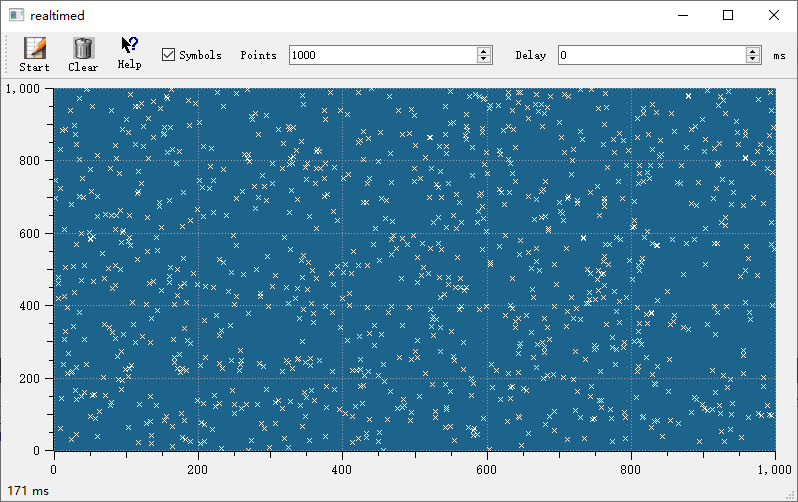
examples/2D/simpleplot- Real-time data:
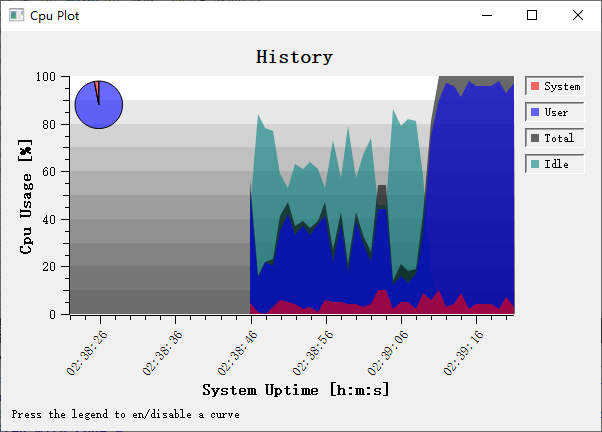
examples/2D/cpuplot- Real-time plotting:
examples/2D/realtime- Oscilloscope:
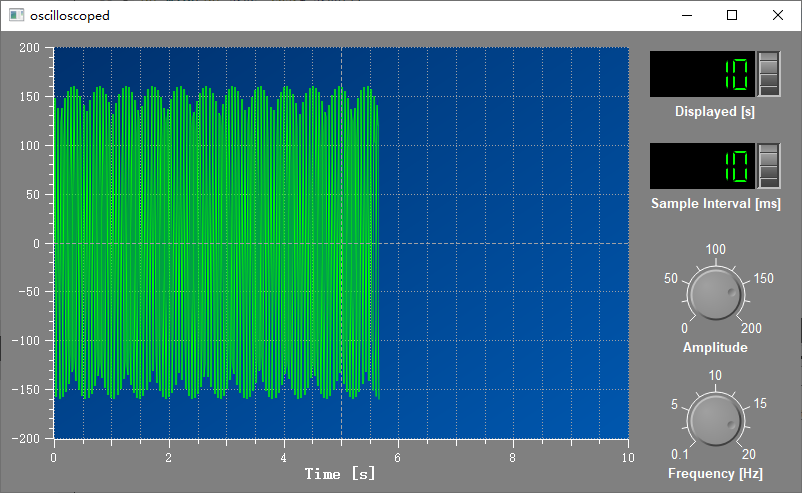
examples/2D/oscilloscope
Screenshots of real-time data, real-time plotting, and oscilloscope: