Rendering Performance & Curve Smoothing
A QwtPlotCurve with a few thousand points is fast no matter how you draw it. Once the data grows to hundreds of thousands or millions of points, or scrolls by at dozens of frames per second, stutter, visual noise and ghosting show up one by one. The sections below follow the drawing pipeline: downsampling, render-time smoothing, hardware acceleration, real-time updates and data-side tuning, with a tuning checklist at the end.
QWT 7's defaults already apply the most important optimization (downsampling is on out of the box), so most applications need no configuration at all. The rest of the page explains when to go further.
Every step links to the matching tech report for the algorithms and measurements behind it.
Cheat Sheet (conclusions first)
Match your symptom to the fix:
| Symptom | Remedy | Section |
|---|---|---|
| Large curves redraw slowly, dragging stutters | Make sure FilterPointsLTTB is on (it is by default); switch to FilterPointsPixel if needed |
Section 2 |
| The curve renders as a "band of noise" | Enable render smoothing via setSmoothAlgorithm() |
Section 3 |
| Worried smoothing flattens peaks | Keep the default feature-preservation threshold setSmoothPreserveThreshold(3.0) |
Section 3 |
| Many curves, rasterization still the bottleneck | Switch to the OpenGL canvas QwtPlotOpenGLCanvas |
Section 4 |
| High-rate appending data (oscilloscope-style) | Incremental painting with QwtPlotDirectPainter, avoid full replots |
Section 5 |
| Ghosting/lag while panning heavy scenes | Toggle between live panning QwtPlotPanner and cached panning QwtPlotCachePanner |
Section 5 |
| Squeezing out the last drop of performance | Feed raw-pointer data (setRawSamples) to unlock the SIMD fast path; keep x sorted |
Section 6 |
1. Understand the Rendering Pipeline
Optimization starts with knowing where the time goes. A QwtPlotCurve passes through these stages on its way from data to pixels:
flowchart LR
    A["Sample data<br/>N points"] --> B["Visible-range clipping<br/>binary search, O(log N)"]
    B --> C["Downsampling<br/>N points → ~4W points<br/>(W = canvas width in pixels)"]
    C --> D["Render smoothing<br/>low-pass + feature preservation"]
    D --> E["Polygon clipping<br/>ClipPolygons"]
    E --> F["QPainter rasterization<br/>or OpenGL canvas"]
Each stage has its own job and switch:
- Visible-range clipping: points outside the canvas never reach the painter. The prerequisite is x-monotonic data: sorted data needs two binary searches, unordered data degrades to a full scan.
- Downsampling: compresses the visible N points to roughly 4W (W = canvas width in pixel columns). This is the biggest win for large data, controlled by paint attributes (Section 2).
- Render smoothing: a low-pass filter over the downsampled polyline that removes pixel-level fuzz, controlled by
setSmoothAlgorithm()(Section 3). - Clipping and rasterization: software rasterization via QPainter by default; the whole canvas can be switched to OpenGL (Section 4).
The screen has only so many pixels. A 900-pixel-wide canvas shows at most 900 pixel columns, so the vast majority of a million points share a column with a neighbor, and handing all of them to the rasterizer is pure waste. Downsampling means "draw exactly the points that can show up, at the precision that can show up".
2. Downsampling: Taming Million-Point Curves
Default behavior: nothing to do
QWT 7's QwtPlotCurve enables ClipPolygons | FilterPointsLTTB by default. FilterPointsLTTB runs the "MinMax bucket" algorithm: the visible data is split into ~2W index buckets and each bucket contributes its minimum and maximum point. A million-point curve ends up drawing only ~3600 points (on a 900-pixel canvas), and no spike can get lost because each bucket's extremes are guaranteed to survive.
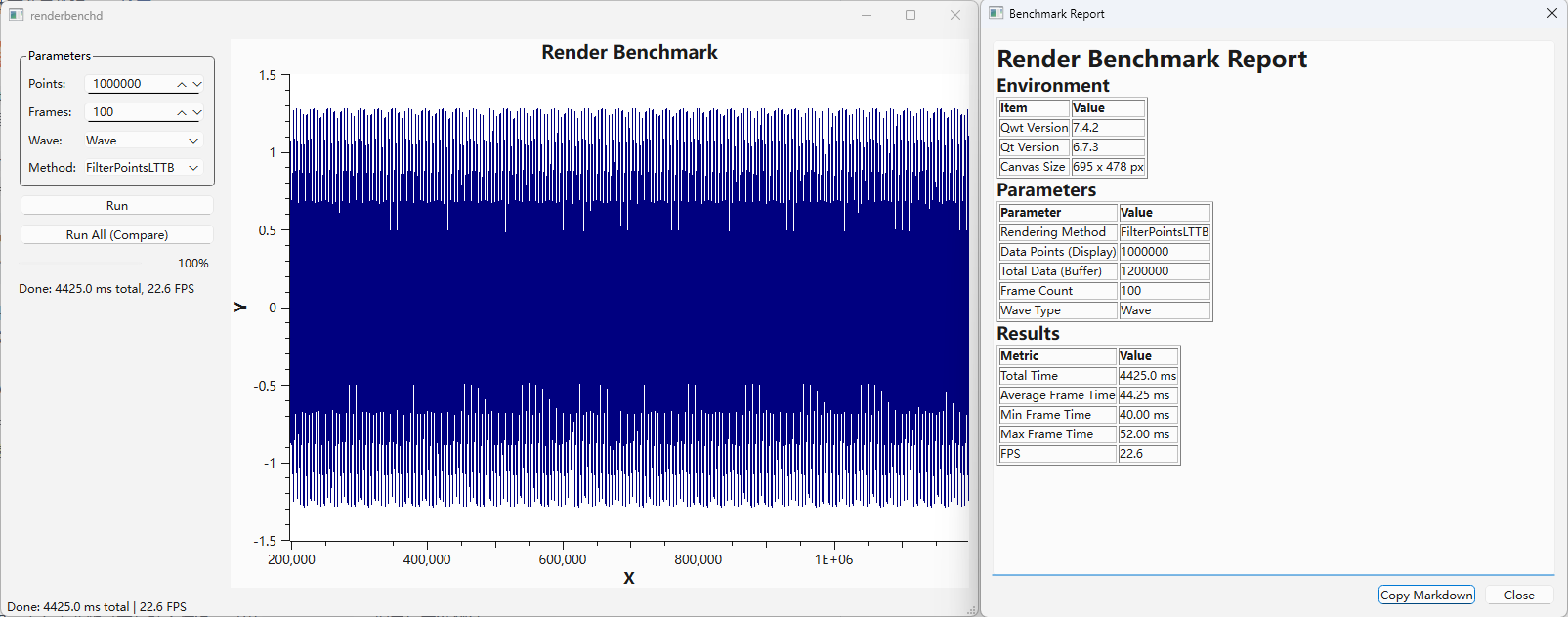
The bundled benchmark examples/bench/renderbench measured each option on one million points (680×490 canvas, 100 frames):
| Method | Per frame | FPS |
|---|---|---|
| No downsampling | 262.1 ms | 3.8 |
FilterPoints (drop duplicates only) |
444.7 ms | 2.2 |
FilterPointsAggressive (quad merge) |
175.4 ms | 5.7 |
FilterPointsPixel (pixel-column merge) |
232.2 ms | 4.3 |
FilterPointsLTTB (default, MinMax buckets) |
133.5 ms | 7.5 |
Note that FilterPoints is slower than doing nothing: it only drops exactly-coincident points, a million real samples contain almost none, so the filtering check becomes pure overhead.
Hands-on: controlling the filter attributes
The snippet below controls downsampling explicitly via QwtPlotCurve::setPaintAttribute(): ClipPolygons and FilterPointsLTTB are already on by default, while pure-noise signals can switch to the pixel-column filter FilterPointsPixel.
1 2 3 4 5 6 7 8 9 10 11 12 13 | |
When several filter attributes are on at once, the internals resolve them by priority FilterPointsPixel > FilterPointsLTTB > FilterPointsAggressive, so enable one at a time.
Choosing between the two workhorses
FilterPointsLTTB (default) |
FilterPointsPixel |
|
|---|---|---|
| Bucketing | Equal sample counts (index domain) | Screen pixel columns (spatial) |
| Keeps | Per-bucket min/max at their true x positions | Per-column first/min/max/last at fixed sub-pixel slots |
| Strength | Shape fidelity; geometrically exact PDF/SVG export | Most stable pixel envelope (noisy signals) |
| Best for | Most waveforms, spectra, trend lines | Near-white-noise signals, integer-pixel alignment |
Verify it yourself with renderbench
examples/bench/renderbench is the dedicated comparison tool: adjustable point count (1,000 – 10,000,000), frame count and waveform; Run All (Compare) benchmarks all five methods and pops up a Markdown report. Toggling Method on the same data shows how differently narrow peaks survive.
Deep dive: algorithm derivation, SIMD acceleration and pixel-level fidelity experiments in the tech report Downsampling Curves for the Screen: LTTB Theory and the QWT7 MinMax Bucket.
Tip — Still stepped after downsampling?
If a dense antialiased curve shows a one-pixel staircase on its shallow flanks while a coarser version of the same data looks smooth, the cause is vertex pixel snapping rather than the reduction algorithm. See Pixel Alignment & Dense Curves for the one-line global switch and the per-algorithm guidance.
3. Render Smoothing: Removing Pixel-Level Noise
Why downsampling still leaves fuzz
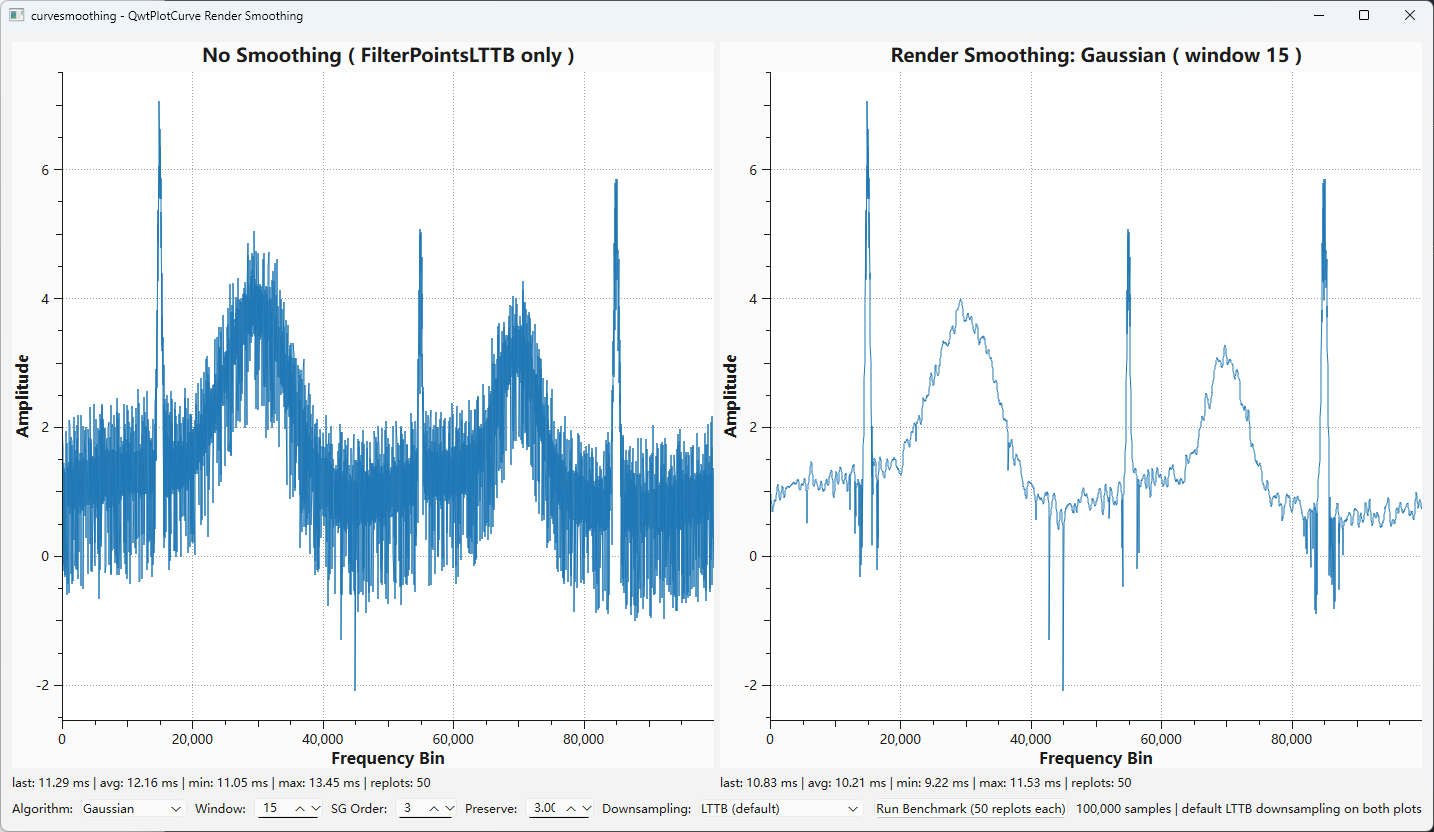
"Keep every bucket's extremes" has a side effect: the extremes of random noise survive too. A 100,000-point noisy spectrum, once downsampled, still shows a noise band ~65 pixel rows thick, and the curve looks like a fuzzy ribbon instead of a line.
Render smoothing fixes exactly that: a low-pass filter applied to the downsampled polyline inside the paint pipeline. It changes only the rendered pixels; the samples in data() are untouched, so analysis and export still see the original values.
Hands-on: enabling smoothing
The snippet below enables render smoothing on a 100,000-point noisy spectrum: setSmoothAlgorithm() selects the Gaussian low-pass, setSmoothWindow() sets the window size, and setSmoothPreserveThreshold() controls feature preservation.
1 2 3 4 5 6 7 8 | |
Measured on a 100,000-point spectrum (900×500 canvas): the noise band collapses from 65.4 to 6.1 pixel rows, while narrow peaks and deep dips stay on exactly the same pixel rows as the unsmoothed render. That is feature preservation at work: structures rising ~2× above the noise scale are restored to their original position and height.
Gaussian or Savitzky-Golay
GaussianSmoothing |
SavitzkyGolaySmoothing |
|
|---|---|---|
| Noise suppression | Strongest (~29% of input noise remains) | Weaker (~39% at the same window) |
| Peak retention | Narrow peaks are shortened (closed-form attenuation) | Much better (polynomial preservation) |
| Best for | General denoising: spectra, acquired signals | Peak-dense spectra, chromatograms |
| Extra parameter | — | setSmoothPolynomialOrder(3); orders 2 and 3 are identical |
Rule of thumb: use Gaussian for noise-limited data and Savitzky-Golay for peak-limited data; if SG leaves too much noise, widen the window (21–31) to compensate.
Tune interactively with the curvesmoothing example
examples/2D/curvesmoothing exposes both algorithms, window, order and preservation threshold as live controls, shows "default render vs smoothed render" side by side, and has a Run Benchmark button (50 replots each). Dragging Preserve to 0 visibly shortens the narrow peaks, which is why feature preservation exists.
Deep dive: full derivations of both kernels (moment conditions, noise-gain identity, peak-attenuation theorem) and the feature-preservation algorithm in the tech report Curve Rendering: Gaussian, Savitzky-Golay and Feature Preservation.
4. Hardware Acceleration: The OpenGL Canvas
Downsampling solves "too many points"; the OpenGL canvas solves "painting too slowly" by moving rasterization from the CPU (QPainter) to the GPU. Swap the canvas and nothing else changes:
1 2 3 4 | |
When it pays off:
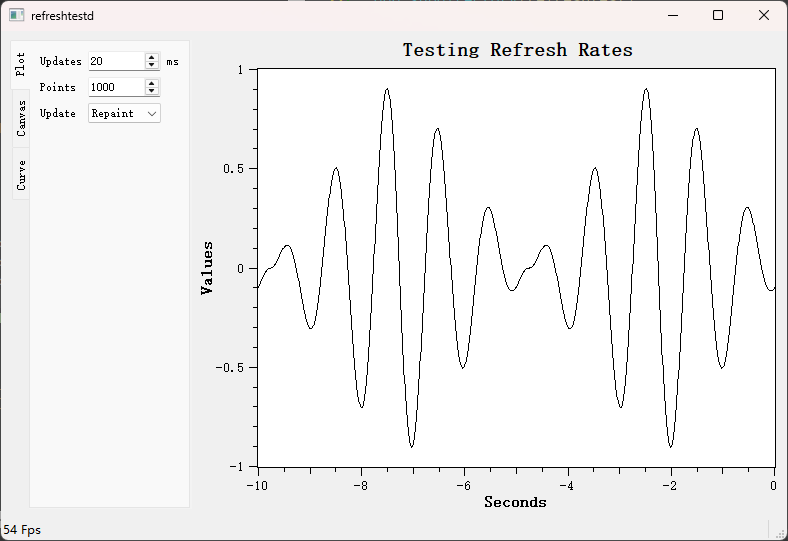
- Worth it: many large curves repainted at high rate (live monitoring), or software rasterization visibly saturating a CPU core (the
refreshtestexample compares both canvases directly); - Skip it: static plots, image/PDF export (export goes through
QwtPlotRenderer, independent of the canvas), or deployments with GPU compatibility concerns.
CMake dependencies, surface-format customization and other details: OpenGL Canvas.
5. Real-Time Updates and Interaction
Incremental painting: QwtPlotDirectPainter
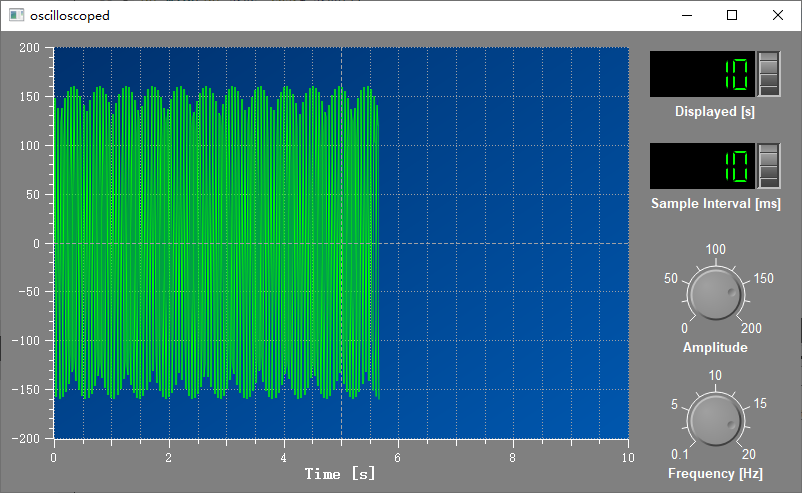
Oscilloscope-style applications append thousands of points per second. Replotting the whole widget for every append is wasteful, so QwtPlotDirectPainter paints only the new segment straight onto the canvas:
1 2 3 4 5 6 7 | |
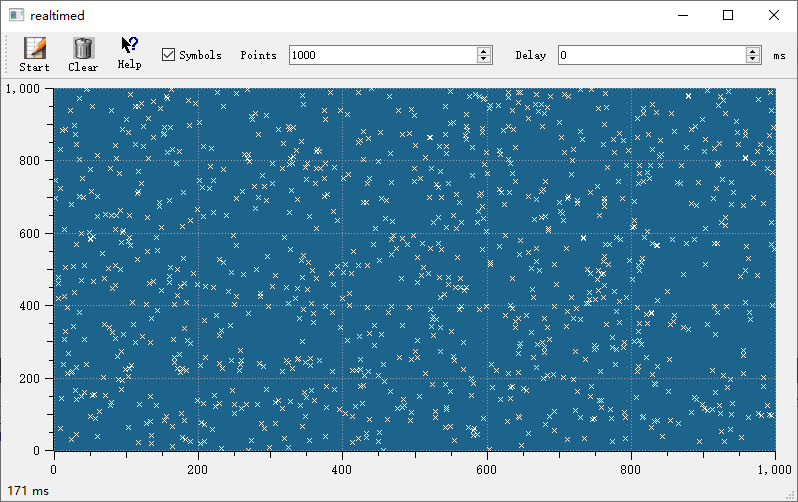
examples/2D/oscilloscope and examples/2D/realtime show the complete pattern: rolling window + incremental painting + periodic full replot for correction.
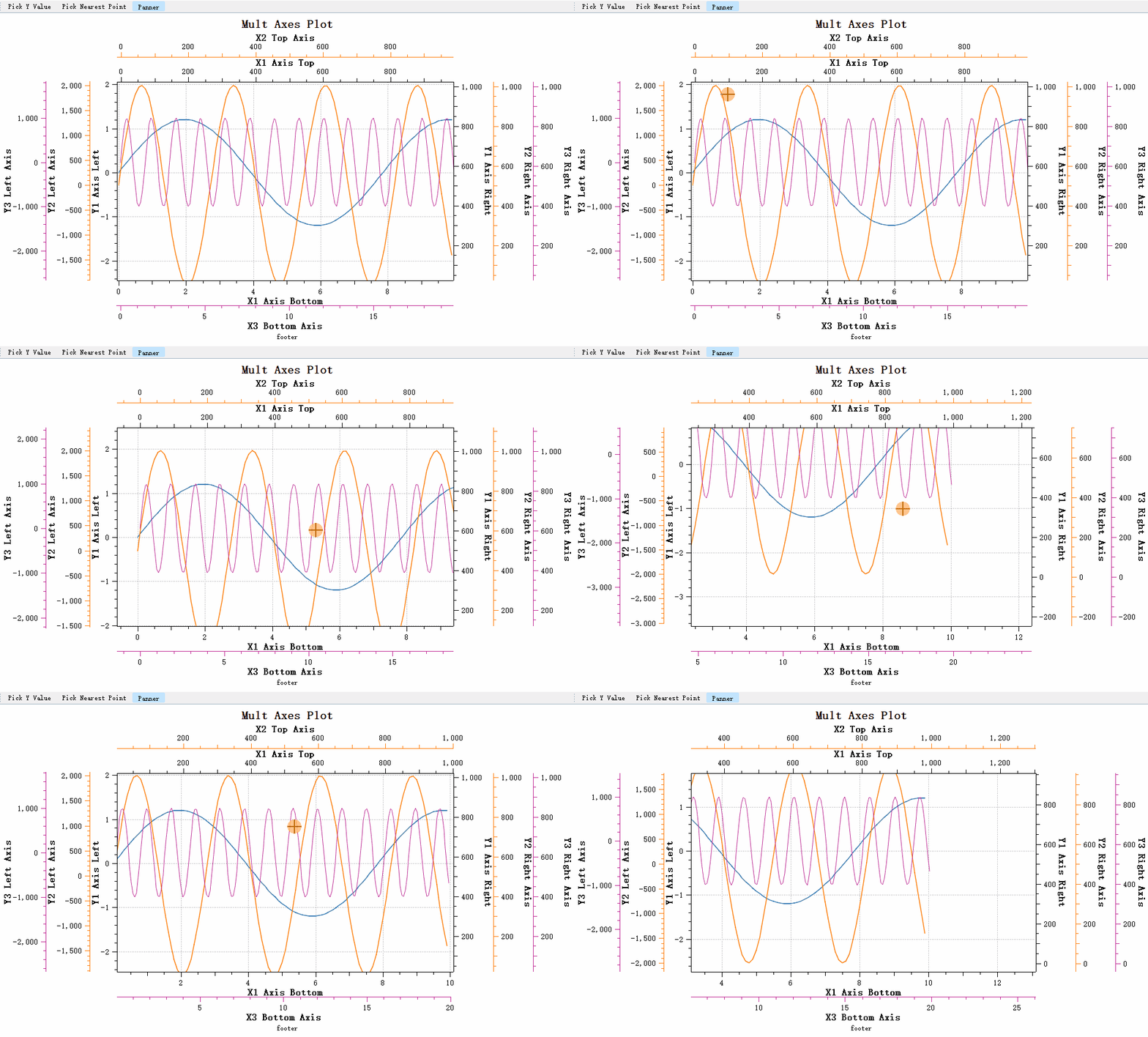
Performance profiles of the interaction tools
| Tool | Behavior | Performance profile |
|---|---|---|
QwtPlotPanner |
Live redraw while dragging | Best feel; may drop frames on heavy scenes |
QwtPlotCachePanner |
Drags a pixel cache, redraws on release | Never stutters; shows the cached bitmap while dragging |
QwtPlotAxisZoomer |
Rubber-band zoom (2 axes) | Zoom always triggers a full redraw — fine once downsampling is on |
For stuttery panning of heavy scenes, switch to QwtPlotCachePanner; if the cached ghosting feels wrong, switch back to QwtPlotPanner. Full usage in Panner and Zoomer.
Throttle your replots
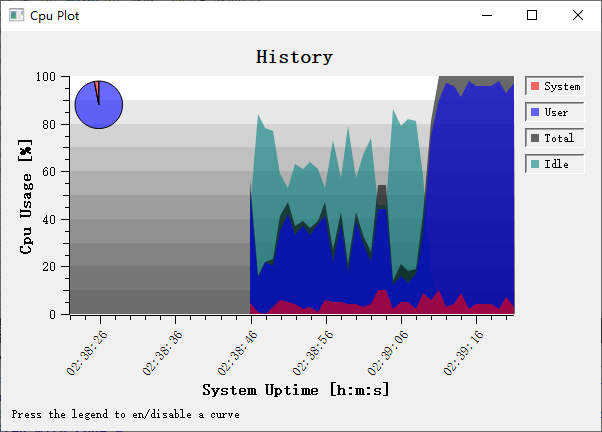
When the data source pushes at high rate, do not replot() per sample; coalesce repaints to a fixed frame budget (30–60 FPS) with a timer. examples/2D/cpuplot demonstrates the standard "cache on arrival, repaint on timer" pattern:
6. Data-Side Tuning
How fast the pipeline runs also depends on the shape of the data you feed it.
- Keep x monotonic: visible-range clipping relies on binary search, O(log N) for sorted data and a full scan otherwise; on a million points the difference is orders of magnitude.
- Prefer raw-pointer data sources:
setRawSamples(xArray, yArray, n)orQwtPointArrayData<double>/QwtCPointerData<double>let the downsampler grab contiguousdouble*arrays and take the SIMD (AVX2/SSE4.2) per-bucket argmin/argmax fast path;QVector<QPointF>goes through the generic per-point virtual-call path. WithsetRawSamplesyou own the array lifetime (see the curve tutorial). - NaN is not free: NaN splits the polyline into segments and pushes the downsampler onto the scalar path. Behavior and performance impact: NaN Handling; measure it yourself with
examples/2D/nanperf(NaN ratio sweep across the five filter attributes).
The full menu of data ingestion options (setSamples overloads, custom QwtSeriesData) lives in Series Data.
7. Tuning Checklist
Work through it in order, measuring after each step (renderbench and the Run Benchmark buttons both give numbers):
- More than 10× as many points as canvas columns? → Confirm downsampling is on (default; make sure legacy calls like
setPaintAttribute(QwtPlotCurve::FilterPoints, ...)did not override it); - Is x monotonic? Is the data source a raw-pointer container? → Fix the data side first (Section 6);
- Noise hurting your eyes? → Enable render smoothing; start with Gaussian w=15, τ=3; switch to SG if peaks shrink (Section 3);
- Still slow? → Switch to the OpenGL canvas (Section 4);
- Appending at high rate? →
QwtPlotDirectPainterincremental painting + timer-throttled replots (Section 5); - Interaction lagging? → Cached panning for heavy scenes; confirm downsampling for zooming (Section 5).
Related Examples
| Example | What it shows |
|---|---|
examples/bench/renderbench |
Timing benchmark and visual comparison of the five downsampling methods |
examples/2D/curvesmoothing |
Interactive tuning and benchmarking of all smoothing parameters |
examples/2D/nanperf |
NaN ratio × filter attribute performance sweep |
examples/2D/oscilloscope |
QwtPlotDirectPainter incremental oscilloscope |
examples/2D/realtime |
60 FPS live data stream |
examples/2D/cpuplot |
Timer-throttled monitoring curves |
examples/2D/refreshtest |
Canvas refresh-rate comparison (raster vs OpenGL) |
Deep Dives
- Tech report: Downsampling Curves for the Screen: LTTB Theory and the QWT7 MinMax Bucket
- Tech report: Curve Rendering: Gaussian, Savitzky-Golay and Feature Preservation
- Tutorials: Curve, OpenGL Canvas, Panner, Zoomer