Spectrogram / Heatmap - QwtPlotSpectrogram
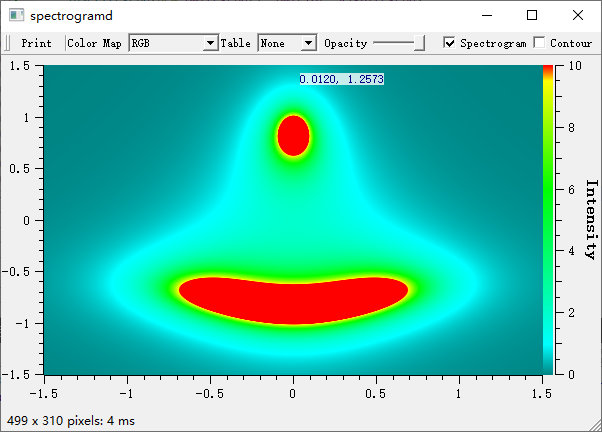
QwtPlotSpectrogram draws spectrograms and heatmaps: three-dimensional data on a 2D plane, with the third dimension (intensity value) shown as color. It is commonly used in scientific data analysis, image processing and acoustic analysis.
Key Features
Values can be shown as a color field (image mode) or as contour lines at chosen levels. Linear, gradient, discrete and other color mapping methods are supported, rendering can be spread over several CPU cores, and several interpolation algorithms are available for smoother output.
Basic Concepts
Spectrogram Principle
A spectrogram maps three-dimensional data (x, y, value) onto a 2D plane:
1 2 3 4 5 6 7 8 9 10 | |
Display Modes
| Mode | Enum Value | Description |
|---|---|---|
| Image mode | ImageMode |
Maps values to colors for display |
| Contour mode | ContourMode |
Draws contour lines |
Class Inheritance Structure
The class diagram below shows the key players and how they relate: QwtPlotSpectrogram extends the raster base class QwtPlotRasterItem, obtains its values from a QwtRasterData subclass, and converts those values into colors through a QwtColorMap:
classDiagram
    class QwtPlotItem {
        +attach()
        +setRenderHint()
        +setRenderThreadCount()
    }

    class QwtPlotRasterItem {
        +setAlpha()
        +setCachePolicy()
        +setPaintAttribute()
    }

    class QwtPlotSpectrogram {
        +setDisplayMode()
        +setColorMap()
        +setContourLevels()
        +setData()
    }

    class QwtRasterData {
        +value(x, y)
        +interval()
        +contourLines()
    }

    class QwtColorMap {
        +rgb()
        +color()
        +colorTable()
    }

    QwtPlotItem <|-- QwtPlotRasterItem
    QwtPlotRasterItem <|-- QwtPlotSpectrogram
    QwtPlotSpectrogram --> QwtRasterData : uses
QwtPlotSpectrogram --> QwtColorMap : usesUsage
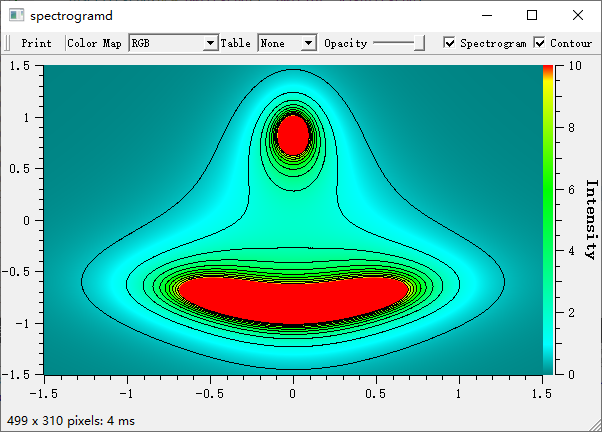
The spectrogram example is located at: examples/2D/spectrogram. Screenshot below:
1. Basic Spectrogram
The basic setup creates a QwtPlotSpectrogram, enables ImageMode with setDisplayMode(), assigns a color map (here a QwtLinearColorMap with several intermediate stops) and passes the raster data via setData() before attaching the item to the plot:
1 2 3 4 5 6 7 8 9 10 11 12 13 14 15 16 17 18 19 20 21 22 23 24 25 26 27 28 29 | |
2. Custom Raster Data
Create a QwtRasterData derived class to provide data: implement the pure virtual interval() and value() methods; contour line computation is optional because the base class already provides a CONREC implementation:
1 2 3 4 5 6 7 8 9 10 11 12 13 14 15 16 17 18 19 20 21 22 23 24 25 26 27 28 29 30 31 32 33 34 35 36 37 38 39 40 41 42 43 44 45 46 47 | |
3. Color Map Configuration
Linear Color Map
QwtLinearColorMap interpolates between color stops added by addColorStop() at normalized positions from 0.0 to 1.0; setFormat() chooses between QwtColorMap::RGB (smooth transitions) and QwtColorMap::Indexed (color-table images):
1 2 3 4 5 6 7 8 9 10 11 12 13 14 | |
Predefined Color Maps
Besides defining your own stops, Qwt ships ready-made maps such as QwtHueColorMap, which cycles the hue of the HSV model for a rainbow effect, QwtAlphaColorMap, which varies the transparency of a fixed color, and QwtSaturationValueColorMap, which varies saturation and/or value for a fixed hue; any of them is assigned through the same setColorMap() call:
1 2 3 4 5 6 7 8 9 10 11 12 13 14 15 16 17 18 | |
4. Contour Display
In ContourMode, the spectrogram draws isolines instead of the color image, or on top of it when both display modes are enabled: setContourLevels() fixes the values that get a line, and setDefaultContourPen() sets the pen used for all levels without a specific one:
1 2 3 4 5 6 7 8 9 10 11 12 13 14 | |
5. Data Resolution Settings
Raster rendering offers a quality-versus-speed trade-off. There is no explicit "pixel size" setter; the image is normally rendered in the resolution of the paint device. What you can control: QwtRasterData::pixelHint() lets the data suggest a pixel grid aligned to the data raster (implemented automatically by QwtMatrixRasterData), the PaintInDeviceResolution paint attribute expands such an image to device resolution before it is passed to QPainter, RenderAntialiased (inherited from QwtPlotItem) toggles antialiasing, and setCachePolicy() keeps a rendered image between repaints:
1 2 3 4 5 6 7 8 | |
6. Multi-Threaded Rendering
Large rasters can be rendered in parallel: setRenderThreadCount(), inherited from QwtPlotItem, distributes the image generation across the given number of threads. The default is 1 (single-threaded), while 0 asks the system to pick a suitable count:
1 2 3 4 5 | |
Tip — Multi-Threaded Rendering Recommendations
- When data exceeds 1 million pixels, multi-threading is recommended
- Set thread count to the number of CPU cores, not exceeding 8
- Multi-threaded rendering is most effective in image mode
7. Using Matrix Data
For plain matrices there is no need to derive from QwtRasterData yourself: QwtMatrixRasterData wraps a flat QVector<double> via setValueMatrix(), takes the x/y/z extents through setInterval(), and interpolates between cells according to its setResampleMode() setting (e.g. BilinearInterpolation):
1 2 3 4 5 6 7 8 9 10 11 12 13 14 15 16 17 18 19 20 21 | |
8. Color Bar
Add a color bar to show the correspondence between colors and values (the scale widget takes ownership of the color map, so pass a new instance rather than reusing the spectrogram's one):
1 2 3 4 5 6 7 8 9 10 11 12 | |
Core Methods Summary
| Method | Description |
|---|---|
setData() |
Set raster data |
setColorMap() |
Set color map |
setDisplayMode() |
Set display mode |
setContourLevels() |
Set contour levels |
setDefaultContourPen() |
Set contour line pen |
setColorTableSize() |
Set the number of color table entries (for Indexed color maps) |
setRenderThreadCount() |
Set rendering thread count (inherited from QwtPlotItem) |
data() |
Get raster data |
colorMap() |
Get color map |
Color Map Classes Summary
| Class | Description |
|---|---|
QwtLinearColorMap |
Linear color map built from color stops, with smooth color transitions |
QwtHueColorMap |
Varies the hue of the HSV color model for a rainbow effect |
QwtAlphaColorMap |
Varies the alpha value (transparency) of a fixed color |
QwtSaturationValueColorMap |
Varies saturation and/or value for a fixed hue in the HSV color model |
Tip — Application Scenarios
- Scientific data analysis: Temperature fields, pressure fields, etc.
- Image processing: Heatmaps, density maps
- Acoustic analysis: Spectrograms, sonar images
- Geographic data: Topographic maps, ocean depth maps
Example — Related Examples
- Spectrogram demo:
examples/2D/spectrogram