Widget Components - Dials and Sliders
Qwt provides a series of instrument widget components for numeric display and interactive control. These widgets are suitable for instrument panels, control systems, data monitoring, and similar scenarios.
Widget Type Overview
| Widget Class | Description |
|---|---|
QwtDial |
Dial/gauge |
QwtKnob |
Knob control |
QwtSlider |
Slider control |
QwtThermo |
Thermometer/progress bar |
QwtWheel |
Wheel control |
QwtCounter |
Numeric counter |
QwtCompass |
Compass |
Usage
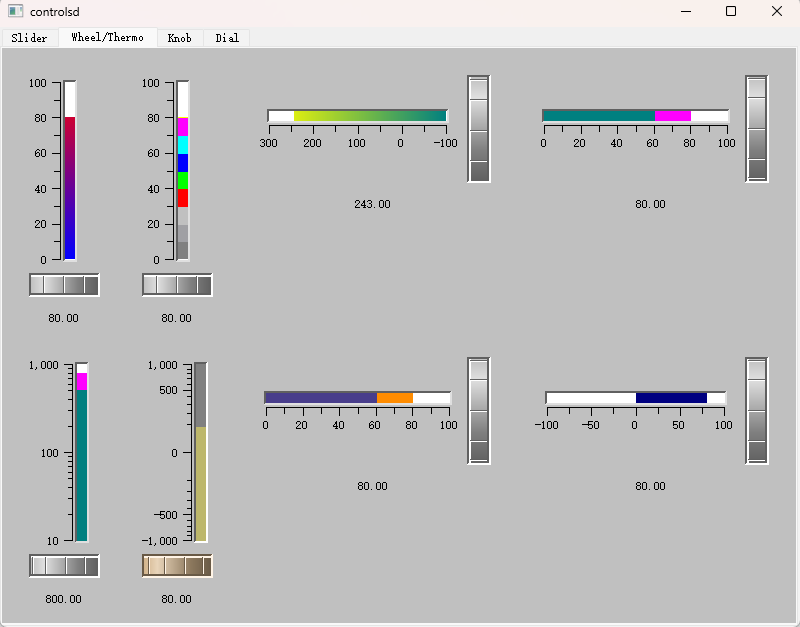
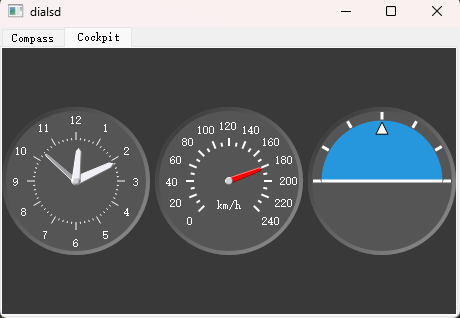
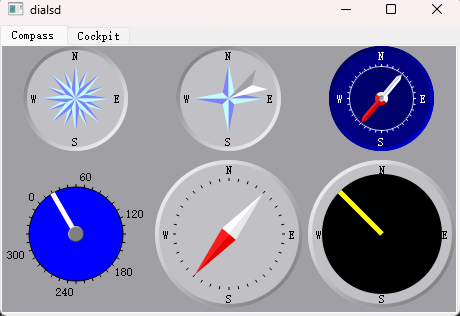
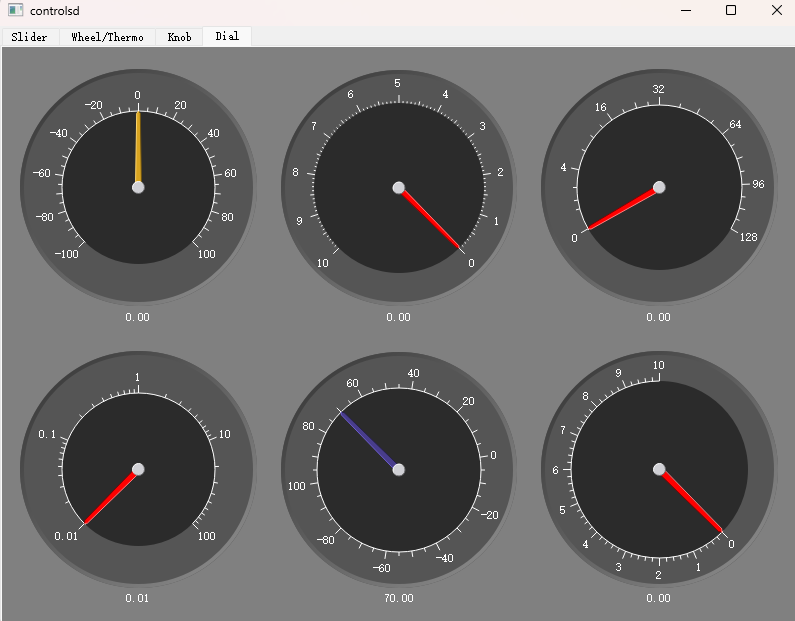
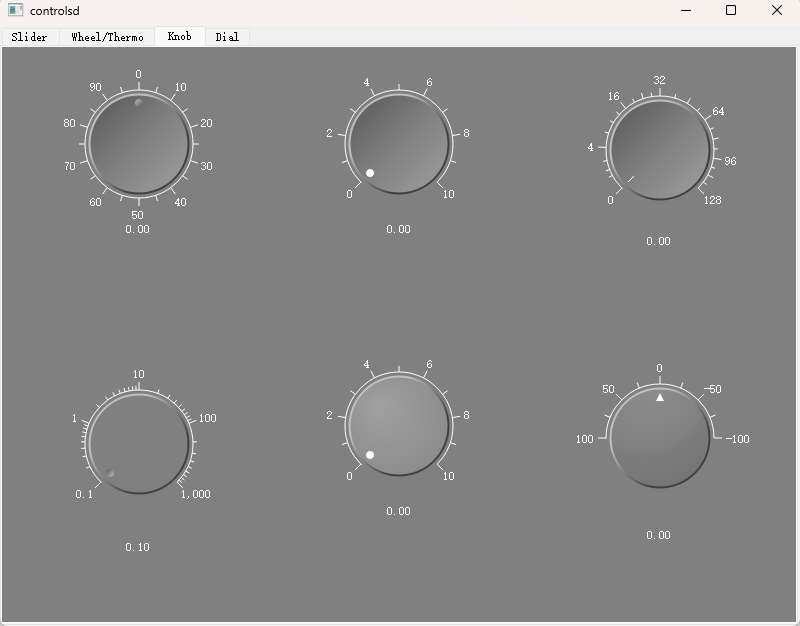
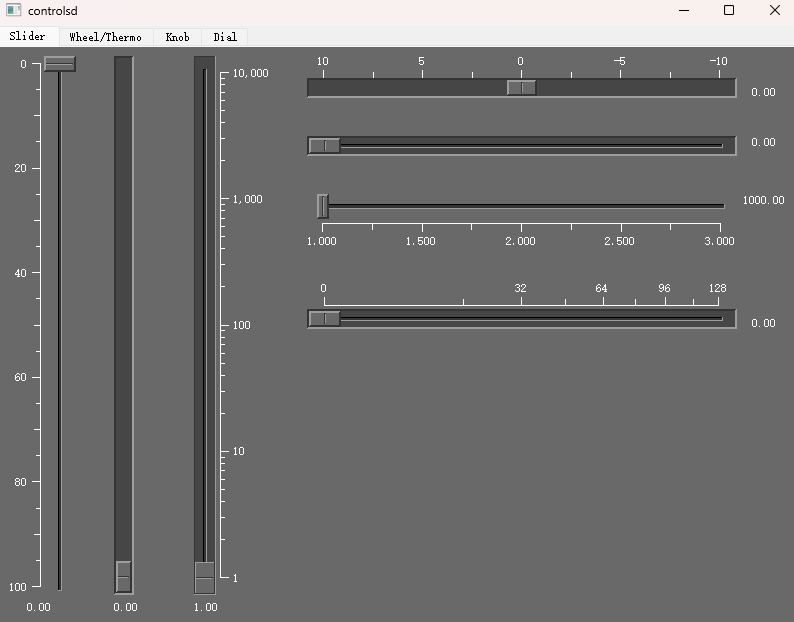
The widget demo is located at: examples/2D/controls. Screenshots:
1. QwtDial - Dial
QwtDial is a round instrument face with a needle indicating the current value (the classic gauge for angles, directions or cockpit-style displays). The value range comes from the inherited setScale() and the tick spacing from setScaleStepSize(); its look is dominated by the needle object installed with setNeedle() (for instance a QwtDialSimpleNeedle in Arrow or Ray style), and setMode() decides whether the needle or the scale rotates. The value itself is set through the inherited setValue() and announced by the valueChanged() signal. The example below shows a typical setup:
1 2 3 4 5 6 7 8 9 10 11 12 13 14 15 16 17 18 19 20 21 22 23 24 25 26 27 | |
2. QwtKnob - Knob Control
QwtKnob emulates a rotatable physical knob that you turn with the mouse; it is a familiar choice for tweaking parameters on audio or instrument panels. setKnobStyle() picks the surface shading (Flat / Raised / Sunken / Styled), setKnobWidth() sizes the knob, the current value is indicated by a marker styled with setMarkerStyle(), and setTracking(true) emits values continuously while dragging, as shown below:
1 2 3 4 5 6 7 8 9 10 11 12 13 14 15 16 17 18 19 20 21 22 23 24 25 26 27 | |
3. QwtSlider - Slider Control
QwtSlider is Qwt's take on the familiar linear slider, ideal for adjusting a value within a bounded range. setOrientation() chooses between Qt::Horizontal and Qt::Vertical, setScalePosition() decides where the scale sits relative to the groove (LeadingScale, TrailingScale or NoScale), and setHandleSize() adjusts the grip, as in the example below:
1 2 3 4 5 6 7 8 9 10 11 12 13 14 15 16 17 18 19 20 21 22 23 24 | |
4. QwtThermo - Thermometer
QwtThermo displays a value as a liquid column inside a pipe, which makes it natural for temperatures, fill levels or progress. setOrientation() lays it out vertically or horizontally, setFillBrush() colors the column, setPipeWidth() sets the pipe thickness, and setAlarmLevel() together with setAlarmBrush() switches to a warning color once the value crosses a threshold:
1 2 3 4 5 6 7 8 9 10 11 12 13 14 15 16 17 18 19 20 21 22 23 24 25 | |
5. QwtWheel - Wheel Control
QwtWheel emulates a mechanical thumb wheel for smooth, continuous value adjustment, and is handy wherever a slider would take too much panel space. setRange() defines the working interval, setWheelWidth() sizes the wheel, setSingleStep() sets the increment per notch, setPageStepCount() decides how many single steps one page step covers, and setMass() turns it into a flywheel that keeps spinning after release; setTracking(true) reports values while the user is still dragging, as the snippet below demonstrates:
1 2 3 4 5 6 7 8 9 10 11 12 13 14 15 16 17 18 19 20 21 22 23 24 25 26 27 28 | |
6. QwtCounter - Numeric Counter
QwtCounter pairs an editable numeric display with increment/decrement buttons for precise numeric entry. setNumButtons() decides how many step-button pairs flank the display, setSingleStep() sets the amount one click of the first button adds, setIncSteps() assigns a larger multiplier to the other buttons, and setWrapping(true) lets the value wrap around at the range boundaries:
1 2 3 4 5 6 7 8 9 10 11 12 13 14 15 16 17 18 19 | |
7. QwtCompass - Compass
QwtCompass is a direction indicator derived from QwtDial that can draw a compass rose on top of the round scale. setRose() installs the rose drawing (for example QwtSimpleCompassRose), the cardinal letters N/E/S/W come from the label map of a QwtCompassScaleDraw installed with setScaleDraw(), and setNeedle() accepts a wind-arrow needle like QwtCompassWindArrow, as shown below:
1 2 3 4 5 6 7 8 9 10 11 12 13 14 15 16 17 18 19 20 21 22 23 24 25 26 27 | |
Core Common Methods
The seven widgets do not all share one base class: QwtDial, QwtKnob and QwtSlider derive from QwtAbstractSlider (itself a QwtAbstractScale), QwtThermo derives from QwtAbstractScale only, while QwtWheel and QwtCounter are standalone QWidget subclasses with a similar value API. The shared methods are available as listed below:
| Method | Available on | Description |
|---|---|---|
setScale(double lower, double upper) |
Dial / Knob / Slider / Thermo | Set value range and scale bounds (from QwtAbstractScale) |
setRange(double min, double max) |
Wheel / Counter | Set numeric range |
setValue(double) / value() |
All seven widgets | Set/get current value |
setSingleSteps(uint) / setPageSteps(uint) |
Dial / Knob / Slider | Number of single/page steps per keyboard or wheel input (QwtAbstractSlider) |
setSingleStep(double) |
Wheel / Counter | Single step size |
setPageStepCount(int) |
Wheel | Number of single steps covered by one page step |
setTracking(bool) |
Dial / Knob / Slider / Wheel | Report values continuously while dragging |
setWrapping(bool) |
Dial / Knob / Slider / Wheel / Counter | Wrap around at the range boundaries |
Tip — Widget Usage Recommendations
- Dials are suitable for angle or direction display
- Knobs are suitable for parameter adjustment
- Sliders are suitable for linear range adjustment
- Thermometers are suitable for progress or temperature display
- Wheels are suitable for continuous smooth adjustment
Example — Related Examples
- Widget demo:
examples/2D/controls- Compass:
examples/2D/dials- Wheel with flywheel effect:
examples/2D/radio
More screenshots of the widget demo: