Data Picking
Data picking is a common requirement for plot controls: the user moves the mouse, and the current value under the cursor is displayed.
Qwt7 adds the QwtPlotSeriesDataPicker class, which shows data-point information while the mouse moves over the plot area. It supports two picking modes, Y-value and nearest-point, for both host plots and parasite plots:
- Dual-mode picking: Y-value or nearest-point mode
- Linear interpolation for values between data points
- Binary search and windowed search for nearest-point picking on large data sets
- Picking across multiple curves
- Custom text style, feature-point drawing and background
- Data retrieval from host plots and parasite plots
Header inclusion:
1 | |
Effect:
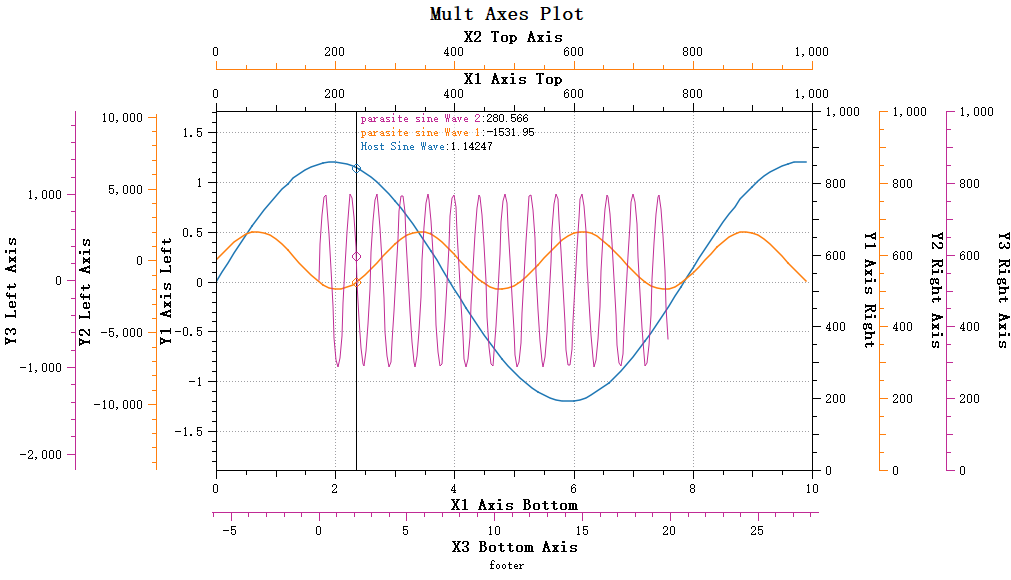
Basic Usage
QwtPlotSeriesDataPicker inherits from QwtPlotPicker. To create a picker, pass the plot's canvas area:
1 2 3 4 5 6 7 8 9 10 11 12 13 14 | |
Picking Mode Settings
QwtPlotSeriesDataPicker provides two picking modes, which can be set via the setPickMode function. The picking mode enum is as follows:
1 2 3 4 5 | |
Y-Value Picking Mode
Y-value picking mode (QwtPlotSeriesDataPicker::PickYValue) displays the Y values of all curves at the current X position.
1 2 | |
Y-value picking mode effect:
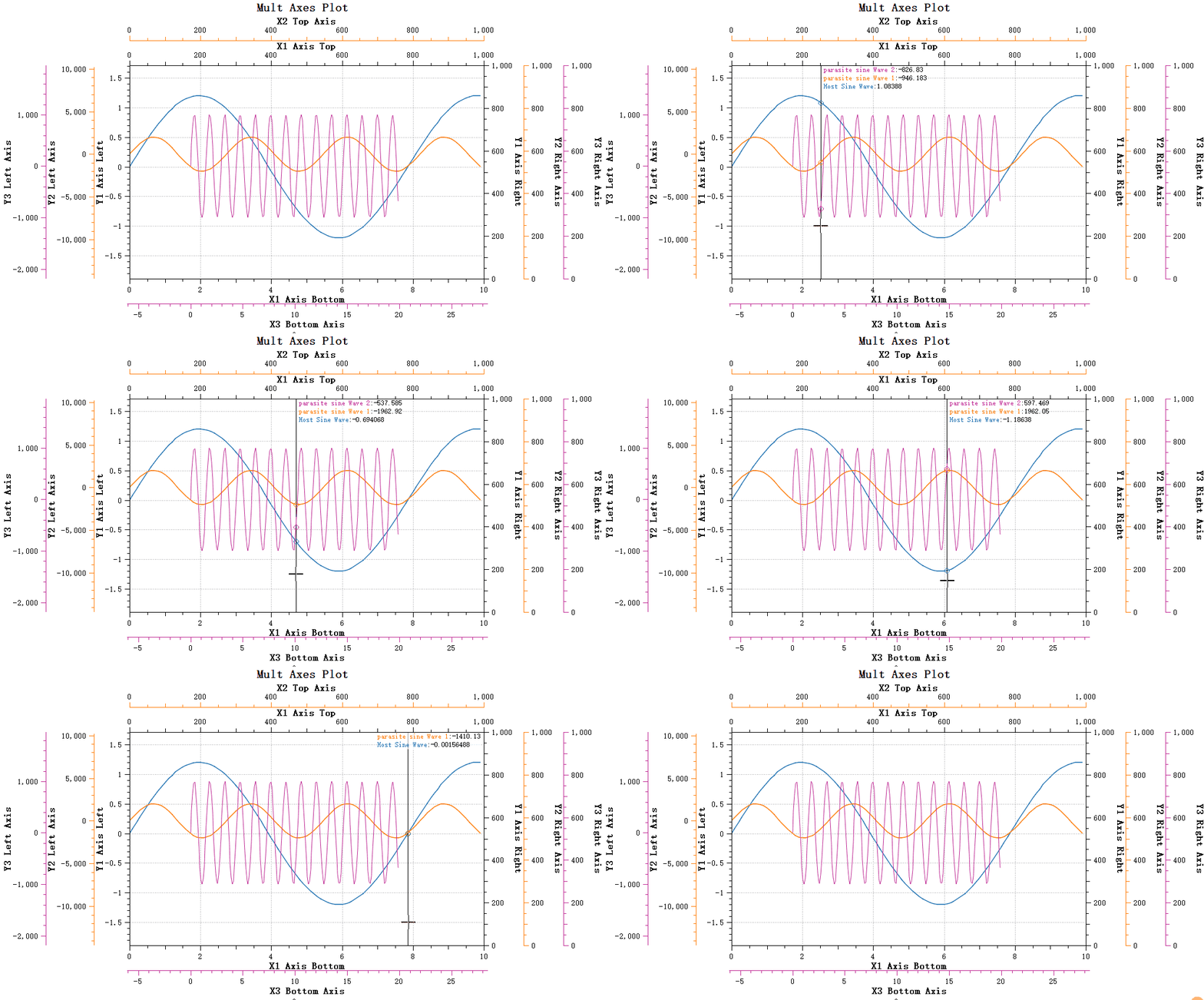
In Y-value picking mode, you can set whether to perform interpolation calculation via the setInterpolationMode method. Interpolation calculation can improve data accuracy. If points are sparse, the Y value corresponding to the current X position is calculated using linear interpolation.
Note
Interpolation is enabled by default.
1 2 | |
Nearest-Point Picking Mode
Nearest-point picking mode (QwtPlotSeriesDataPicker::PickNearestPoint) calculates and picks the point closest to the mouse. This mode is especially suitable for picking peak data in plots such as spectrum plots.
1 2 | |
Nearest-point picking mode effect:
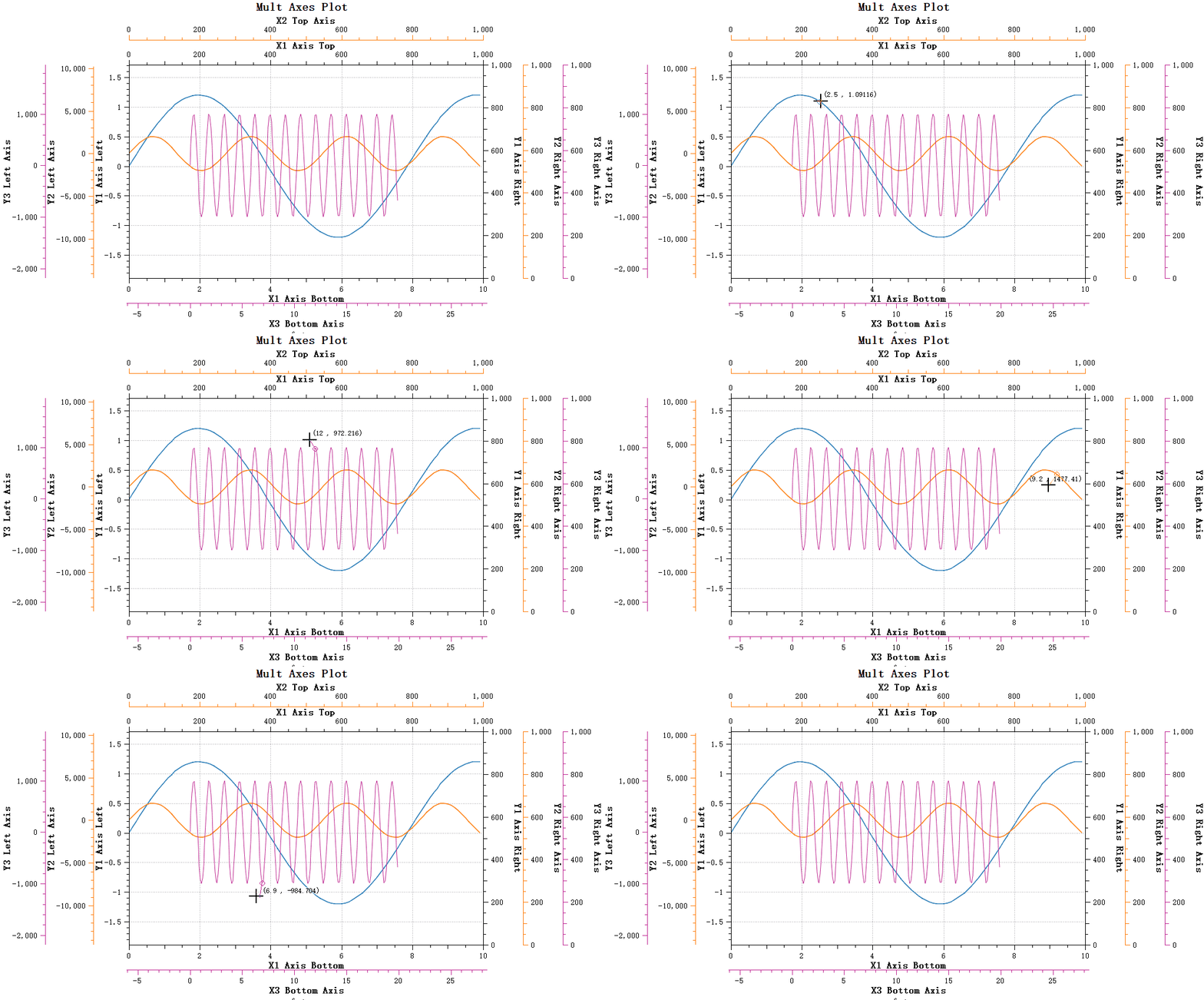
Nearest-point picking requires calculating the distance from curve points to the mouse position. Traversing the entire curve is expensive, so Qwt7 provides a window search algorithm that quickly finds the data point closest to the mouse.
Set the search window size via the setNearestSearchWindowSize method:
1 2 3 4 | |
The search window can be set in the following ways:
- 0: No window, search the entire curve
- Positive number: Fixed window size (number of data points)
- Negative number: Adaptive window, using a percentage of the total curve data points (absolute value, e.g., -5 means 5%)
The default search window size is -5, meaning 5% of the curve points.
Warning — Search window threshold
The default threshold for enabling the window search algorithm in Qwt7 is 1000 data points, meaning the window setting only takes effect when the curve has more than 1000 points.
Note — Sorted data
The window optimization algorithm requires curve data to be sorted in ascending order by X coordinate. If using a custom data source, ensure the data is properly sorted.
Other Property Settings
Text Display Settings
QwtPlotSeriesDataPicker allows setting the text display position. The text display position is defined by the enum QwtPlotSeriesDataPicker::TextPlacement. You can use the setTextArea function to set where the text is placed. The default is automatic placement, chosen from the picking mode.
You can set the text alignment style and background color via the following methods:
1 2 3 4 | |
Bug — Drawing order with parasite plots
The drawing area of
QwtPlotSeriesDataPickeris the layer of the host plot. Parasite plots are child windows of the host plot, so graphics drawn by parasite plots overlay the host plot. This means curves displayed by parasite plots appear above the drawing area ofQwtPlotSeriesDataPicker. The current parasite plot architecture cannot makeQwtPlotSeriesDataPickercontent appear above parasite plots.
Feature Point Drawing
Points picked by QwtPlotSeriesDataPicker are called feature points. Feature points are marked on the curve. You can set the feature point drawing style via the following methods:
1 2 3 4 5 | |
Customization
Custom Display Text
The displayed text content can be customized by inheriting QwtPlotSeriesDataPicker and overriding the valueString method to customize the display format of data points:
Here is an example:
1 2 3 4 5 6 7 8 9 10 11 12 13 14 15 16 17 18 19 20 21 22 23 | |
The order parameter of the valueString method represents the nth feature point being displayed. If you have multiple curves, this parameter increments. You can use this parameter to determine whether to insert a line break (when it is 0).
Click Signals
QwtPlotSeriesDataPicker emits click signals for mouse clicks.
Signal Description
QwtPlotSeriesDataPicker emits two signals, clicked() and doubleClicked(), both carrying the sending picker and the screen position of the click as arguments. Their signatures are as follows:
1 2 3 4 5 | |
Signal Parameters:
| Parameter | Type | Description |
|---|---|---|
| picker | QwtPlotSeriesDataPicker* | Pointer to the clicked picker |
| pos | QPoint | Screen position of the click event |
Left Button Only
Note — Left button only
Click signals only respond to the left mouse button (Qt::LeftButton). Right-click and middle-click do not trigger these signals.
Double-Fire Behavior
Warning — Double-click sequence
When the user double-clicks, the
clicked()signal is fired first, followed by thedoubleClicked()signal. This is standard Qt behavior, not a bug.If you need to distinguish between single-click and double-click, it is recommended to connect only one of the signals, not both.
Getting Picked Data
You can get the currently picked data point information via the featurePoints() method.
FeaturePoint Structure
Each picked point is described by the nested struct QwtPlotSeriesDataPicker::FeaturePoint, which bundles the owning plot item (item), the picked coordinates (feature) and the index of the point within the series data (index). Its definition is:
1 2 3 4 5 6 | |
Field Description:
| Field | Type | Description |
|---|---|---|
| item | QwtPlotItem* | Curve pointer, can get curve name via item->title().text() |
| feature | QPointF | Data point coordinate values (x, y) |
| index | size_t | Index position of the data point in curve samples |
featurePoints() Method
featurePoints() is a const accessor that returns a QList<FeaturePoint>. Its signature is:
1 2 | |
featurePoints() returns all feature points picked at the current tracker position. This method is typically called in clicked or doubleClicked signal handlers to get data at the click position.
Tip — Multiple entries
The returned list may contain multiple
FeaturePointentries, as the mouse position may correspond to data points from multiple curves simultaneously (especially in Y-value picking mode).
Group Signal Forwarding
QwtPlotSeriesDataPickerGroup provides click signal forwarding within the group.
Group Signal Description
QwtPlotSeriesDataPickerGroup re-emits the clicked() and doubleClicked() signals of every picker it contains, so a single connection to the group covers all members while the picker argument still tells which member was clicked. The forwarded signal signatures are:
1 2 3 4 5 | |
Sync-Before-Signal
Note — Sync before signal
Before emitting click signals, the Group synchronizes the positions of all other pickers in the group. This means when the
clickedsignal fires,featurePoints()of all pickers in the group have already been updated to the synchronized position.
This matters for linked subplots: when the user clicks one subplot, the pickers in the other subplots are already synchronized to the same proportional X position, so data from all subplots can be read at that position.
Code Example
The following example connects Group click signals and retrieves picked data:
1 2 3 4 5 6 7 8 9 10 11 12 13 14 15 16 17 18 19 20 21 22 23 24 25 26 27 28 29 30 31 | |
Multi-Subplot Linked Example
With the Group's synchronization mechanism, a multi-subplot layout supports cross-plot data inspection:
1 2 3 4 5 6 7 8 9 10 11 12 13 14 15 16 17 18 19 20 21 22 23 24 25 26 27 28 | |