Box Chart (Box-and-Whisker Plot) User Guide
QwtPlotBoxChart draws box-and-whisker plots. A box plot summarizes the median, quartiles, and outliers of a data set, and is common in data analysis and scientific visualization.
Key Features
- Pre-computed statistics or automatic calculation from raw data
- Built-in statistics calculator with Tukey, percentile, standard deviation, and other calculation methods
- Rectangle, diamond, and notch box styles
- Vertical and horizontal orientations
- Automatic outlier detection with customizable symbols and jitter display
- Customizable box fill, border, median line, and whisker styles
Basic Concepts
What is a Box Plot
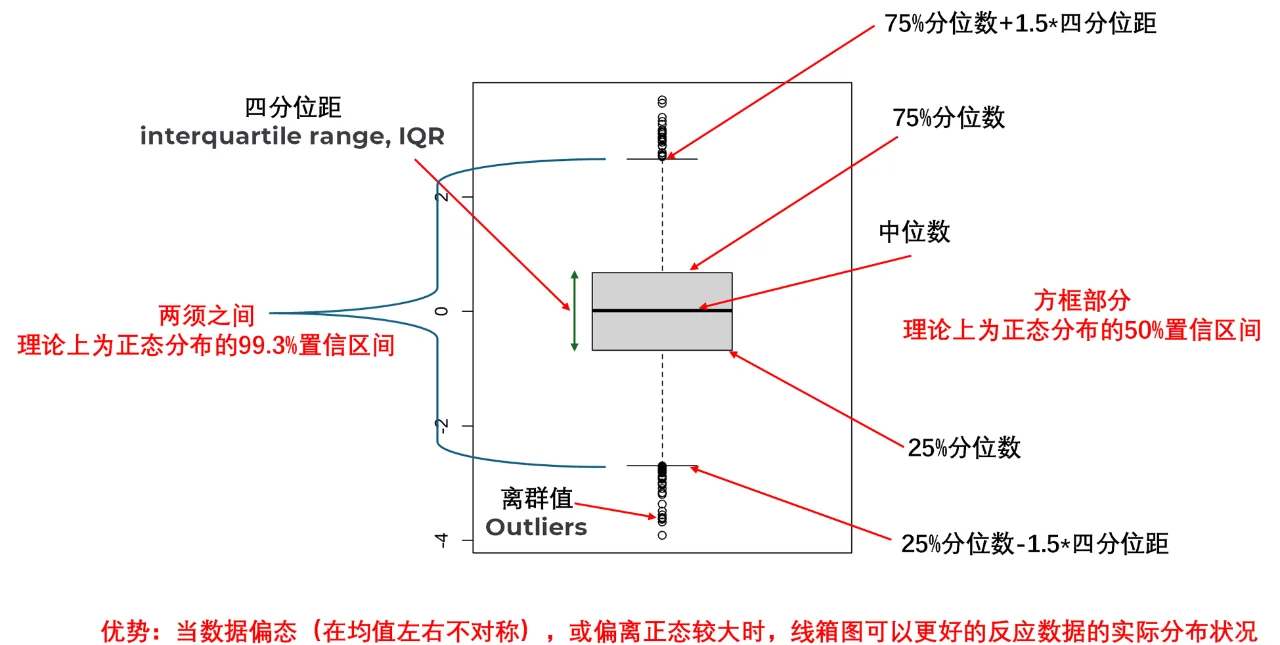
A box-and-whisker plot is a statistical chart used to display data distribution characteristics. It describes data distribution through five key values (five-number summary):
- Minimum: The smallest value in the dataset or the lower whisker position
- Q1 (First Quartile): 25% of the data falls below this value
- Median: The middle value of the data, 50th percentile
- Q3 (Third Quartile): 75% of the data falls below this value
- Maximum: The largest value in the dataset or the upper whisker position
Box Plot Structure Diagram
The figure below shows the components of a standard box plot:
Class Relationship Structure
The inheritance and composition relationships of box plot related classes are as follows:
classDiagram
    class QwtPlotSeriesItem {
        +drawSeries()
        +boundingRect()
        +rtti()
    }

    class QwtSeriesStore~T~ {
        +setData()
        +sample(i)
        +size()
    }

    class QwtPlotBoxChart {
        +setBoxStyle()
        +setWhiskerStyle()
        +setOrientation()
        +setSamples()
        +setOutliers()
        +setBrush()
        +setPen()
    }

    class QwtBoxSample {
        +position
        +whiskerLower
        +q1
        +median
        +q3
        +whiskerUpper
    }

    class QwtBoxOutlierSample {
        +boxPosition
        +values
    }

    class QwtBoxStatisticsCalculator {
        +calculate()
        +calculateFromRaw()
        +calculateFull()
        +extractOutliers()
    }

    QwtPlotSeriesItem <|-- QwtPlotBoxChart
    QwtSeriesStore <|-- QwtPlotBoxChart
    QwtPlotBoxChart --> QwtBoxSample : uses
    QwtPlotBoxChart --> QwtBoxOutlierSample : uses
    QwtBoxStatisticsCalculator --> QwtBoxSample : creates
    QwtBoxStatisticsCalculator --> QwtBoxOutlierSample : creates
Data Structures in Detail
QwtBoxSample
QwtBoxSample is the core data structure of the box plot, representing all statistical values for a single box:
1 2 3 4 5 6 7 8 9 | |
Info — Parameter Order Note
Constructor parameter order:
position, whiskerLower, q1, median, q3, whiskerUpperEnsure parameters are passed in the correct order, otherwise the box plot will display incorrectly
QwtBoxOutlierSample
Outlier data is stored separately from box data:
1 2 3 4 | |
Advantages of separating outlier data from box data:
- Outliers can use their own symbols, colors, and sizes.
- Outliers can be added or removed independently without affecting box data.
- Box data and outlier data are maintained independently.
Usage
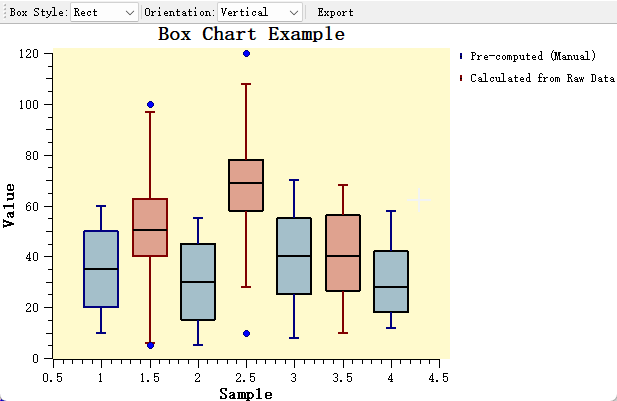
The box chart example is located at: examples/2D/boxchart. Screenshot below:
1. Creating a Basic Box Plot
The simplest approach is to directly provide pre-computed statistical data. This is suitable for scenarios where statistical analysis has already been completed.
Applicable scenarios:
- Data already processed by other statistical software
- Precise control over each statistical value is needed
- Batch display of multiple pre-computed statistical datasets
1 2 3 4 5 6 7 8 9 10 11 12 13 14 15 16 17 18 19 20 21 22 23 24 25 26 | |
2. Automatic Calculation from Raw Data
When only raw data is available, use QwtBoxStatisticsCalculator to automatically compute statistics and outliers.
Applicable scenarios:
- Real-time data analysis display
- Direct visualization of raw data
- Dynamic data update scenarios
1 2 3 4 5 6 7 8 9 10 11 12 13 14 15 16 17 18 19 20 21 22 23 24 25 26 27 28 29 30 31 32 33 34 35 36 37 38 39 40 41 42 43 44 45 46 47 48 49 | |
3. Statistical Calculation Methods in Detail
QwtBoxStatisticsCalculator provides multiple whisker calculation methods for different data analysis needs:
flowchart LR
    A[Raw Data] --> B{Select Method}
    B -->|Tukey| C[1.5*IQR]
    B -->|Percentile| D[Specified Percentile]
    B -->|MinMax| E[Min/Max Values]
    B -->|SD| F[Standard Deviation Range]
    B -->|SE| G[Standard Error Range]
    C --> H[Output: Sample + Outliers]
    D --> H
    E --> H
    F --> H
G --> H| Calculation Method | Applicable Scenario | Description |
|---|---|---|
Tukey |
Standard box plot | Uses 1.5*IQR to determine whisker range, the most classic outlier detection method |
Percentile |
Custom range | Uses specified percentiles (e.g., 5th and 95th) as whisker endpoints |
MinMax |
Full data range | Whiskers extend to the minimum and maximum values of the data, no outliers displayed |
StandardDeviation |
Normally distributed data | Uses mean +/- n*standard deviation to determine range |
StandardError |
Statistical inference | Uses mean +/- n*standard error, suitable for sample statistical inference |
Note — Percentile whisker levels
c is the tail percentage:
whiskerLower = quantile(c/100),whiskerUpper = quantile(1−c/100), so c=5 gives the 5th/95th percentiles. Before v7.5.1 the two levels were exchanged (inverted whiskers, every sample counted as an outlier); the defect is fixed. For c > 25 the whiskers fall inside the box, which is what the percentile definition says. See the technical report Quantile Algorithms for Box Plot Statistics for the analysis.
4. Box Style Configuration
QwtPlotBoxChart provides three box display styles:
1 2 3 4 5 6 7 8 | |
Info — Style Selection Guide
Rect: Standard box plot style, suitable for most scenariosDiamond: Suitable for comparing distribution symmetry across multiple groupsNotch: Notch represents the median confidence interval; if notches of two groups do not overlap, their medians are significantly different
5. Display Orientation Switching
Box plots support both vertical and horizontal display orientations, adjustable based on plot layout:
1 2 3 4 5 | |
When switching orientation, note the following:
Warning — Refresh After Orientation Switch
After switching orientation, call
plot->replot()orplot->setAxisAutoScale()to refresh the axes, otherwise the axis ranges may not adapt to the new data orientation
1 2 3 4 5 6 7 8 9 10 11 12 13 14 15 16 17 18 | |
6. Outlier Style Customization
Outliers can use their own symbol and jitter:
1 2 3 4 5 6 7 8 9 10 11 12 | |
Jitter:
When multiple outlier values are identical or similar, they overlap at the same position when displayed.