Symbol Styles - QwtSymbol
QwtSymbol defines how data points are marked. It offers a set of predefined shapes and custom paths, and its size, fill and border are configurable; curves and scatter plots use it to draw markers.
Main Features
Predefined shapes include ellipse, rectangle, diamond, triangle and cross, and a custom QPainterPath can describe arbitrary shapes. Size, fill color and border color are configurable, and the pin point sets where the symbol attaches to the data point.
Basic Concepts
Symbol Shape List
| Shape | Enum Value | Description |
|---|---|---|
| No symbol | NoSymbol |
Do not display symbol |
| Ellipse | Ellipse |
Circle or ellipse |
| Rectangle | Rect |
Square or rectangle |
| Diamond | Diamond |
Diamond |
| Triangle | Triangle |
Upward-pointing triangle |
| Down Triangle | DTriangle |
Downward-pointing triangle |
| Up Triangle | UTriangle |
Upward-pointing triangle |
| Left Triangle | LTriangle |
Left-pointing triangle |
| Right Triangle | RTriangle |
Right-pointing triangle |
| Cross | Cross |
Plus-shaped cross (+) |
| X Cross | XCross |
Diagonal cross (X) |
| Horizontal Line | HLine |
Horizontal line |
| Vertical Line | VLine |
Vertical line |
| Star | Star1 |
X combined with + |
| Star2 | Star2 |
Six-pointed star |
| Hexagon | Hexagon |
Regular hexagon |
| Path | Path |
Custom QPainterPath |
| Pixmap | Pixmap |
QPixmap bitmap |
| Graphic | Graphic |
QwtGraphic object |
| SVG | SvgDocument |
SVG document graphic |
Usage
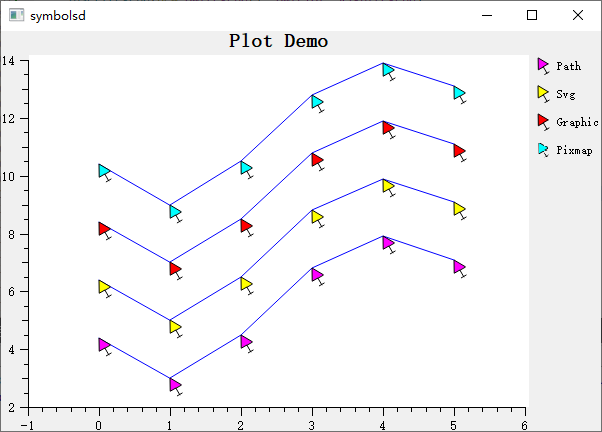
The symbol demo is located at: playground/symbols. Screenshot:
1. Creating Basic Symbols
A symbol can be fully configured in one shot through the convenience constructor QwtSymbol(style, brush, pen, size), or created empty and then set up step by step with setStyle(), setBrush(), setPen() and setSize(). The example below demonstrates both approaches:
1 2 3 4 5 6 7 8 9 10 11 12 13 14 15 16 | |
2. Applying Symbols to Curves
Symbols are handed to a curve with QwtPlotCurve::setSymbol() (the curve takes ownership of the pointer) and are then drawn at every sample position. The example below attaches a small filled symbol to a curve:
1 2 3 4 5 6 7 8 9 10 11 12 13 | |
3. Common Symbol Shape Examples
The first argument of the convenience constructor is a QwtSymbol::Style enum value, which can be combined freely with a fill QBrush and an outline QPen; line-only shapes such as Cross and XCross are typically paired with Qt::NoBrush. The code below builds several commonly used shapes:
1 2 3 4 5 6 7 8 9 10 11 12 13 14 15 16 17 18 19 20 21 22 23 | |
4. Custom Shapes
Creating custom shapes using QPainterPath:
1 2 3 4 5 6 7 8 9 10 11 12 13 14 15 | |
5. Symbol Size Settings
The symbol dimensions are set with setSize(), which has two overloads: one taking a QSize and one taking separate width and height, so non-square symbols such as ellipses are possible. The example below shows both forms:
1 2 3 4 5 6 7 8 | |
6. Symbol Pin Point
The pin point defines the position inside the symbol's own coordinate system (painter path coordinates for Path, pixel coordinates for Pixmap, viewBox coordinates for SvgDocument) that is aligned to the data point. It only applies to Path, Pixmap, Graphic and SvgDocument symbols; the coordinates are not normalized to [0,1]. By default the pin point is disabled and symbols are centered on the data point.
1 2 3 4 5 6 7 8 9 10 11 12 13 14 | |
7. Symbol Fill Styles
Filling is controlled by setBrush(), and the QBrush may be a solid color, a gradient such as QLinearGradient, or a fill pattern; passing Qt::NoBrush leaves only the outline. The code below demonstrates a few common fill styles:
1 2 3 4 5 6 7 8 9 10 11 12 13 14 | |
8. Border Styles
The border is controlled by setPen(), where line style, width and color all come from the supplied QPen; passing Qt::NoPen removes the border entirely. The example below shows several typical pen configurations:
1 2 3 4 5 6 7 8 9 10 11 | |
Core Method Summary
| Method | Description |
|---|---|
setStyle() |
Set symbol shape |
setSize() |
Set symbol size |
setBrush() |
Set fill brush |
setPen() |
Set border pen |
setPath() |
Set custom path |
setPinPoint() |
Set pin point position |
drawSymbol() |
Draw symbol |
Tip — Symbol Usage Recommendations
- Use small symbols or no symbols when data points are dense
- Use large symbols to emphasize key data points
- Use different shapes for different data series for easy distinction
- Unfilled symbols (Cross, XCross) have better performance
Example — Related Examples
- Symbol demo:
playground/symbols