Curve Pixel Alignment: Why Dense Data Looks Stepped and What to Do
You have a curve with a lot of samples. Zoomed to a peak, it looks like a staircase drawn with a one-pixel pen, even though antialiasing is on. Load a coarser version of the same data and the curve is smooth. The problem is not the data and not the antialiasing: Qwt is snapping every curve vertex to the device pixel grid before the rasterizer sees it, and dense data is where that shows. The switch is QwtPainter::setRoundingAlignment(), and the downsample_demo example reproduces the comparison; the full derivation and measurements are in the tech report Pixel Snapping in the Curve Pipeline.
1. First, Recognize the Symptom
The screenshot below comes from examples/2D/downsample_demo. Both panels show the same peak of the same dense dataset (about 200k samples per peak) with the same default reduction, FilterPointsLTTB; the only difference is the global pixel alignment switch: on (the library default) on the left, off on the right. The view is the shoulder of the tallest peak at 3x nearest-neighbour magnification.
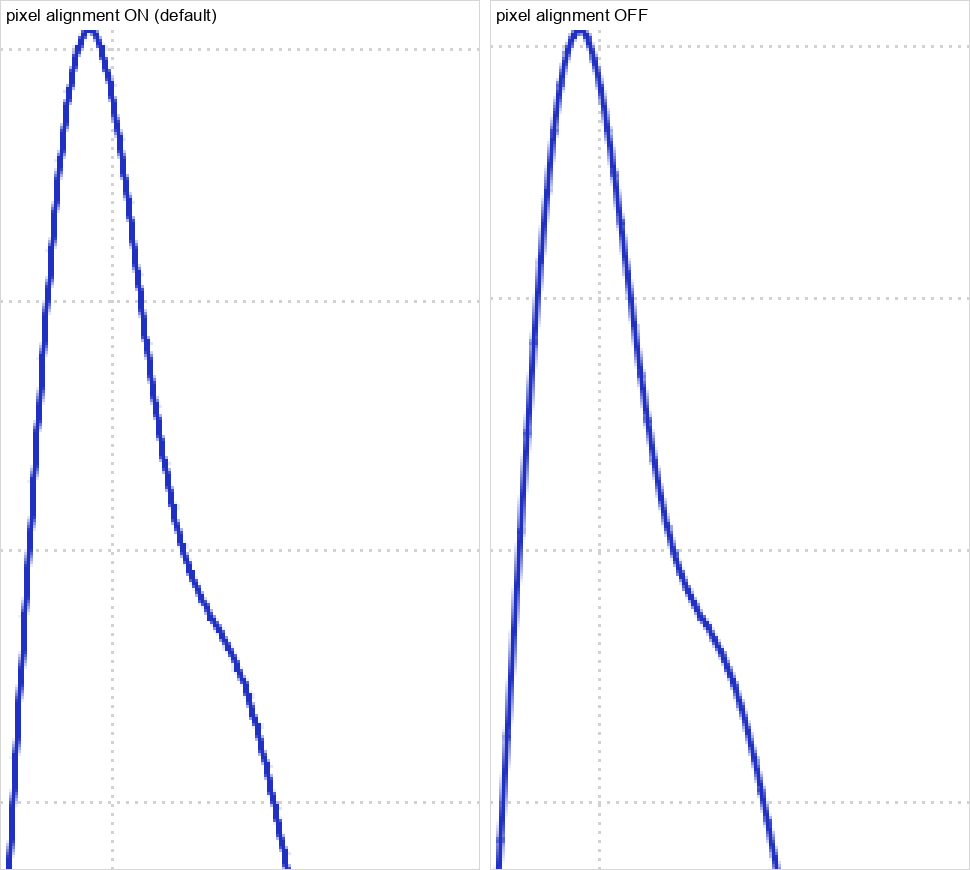
On the left the edge advances in one-pixel steps, like a staircase. On the right the same curve keeps its sub-pixel vertices, so the antialiased rasterizer spreads each edge over two rows and the diagonal stays continuous.
The pattern to remember:
| What you see | What it means |
|---|---|
| Diagonal edge made of 1 px steps, only on curves with many samples per pixel column | vertices snapped to the pixel grid (this article) |
| Whole curve covered in fuzz, no clear line | noise, not alignment — use render smoothing |
| Curve looks fine at full range, stepped when zoomed into a peak | dense samples per column — exactly this case |
| Only the exported PDF/SVG is smooth, screen is stepped | same cause; export already keeps sub-pixel coordinates |
Note — This is not an antialiasing failure
Turning antialiasing on or off changes the edge softness but not the steps. In the comparison figure of the tech report the four panels all have antialiasing enabled, and the stepped ones still contain blend pixels. The geometry is already quantized before Qt draws it.
2. The Cause in One Paragraph
Every QwtPlotCurve converts data coordinates to screen coordinates through QwtPointMapper. A global switch, QwtPainter::setRoundingAlignment(), is on by default, and while it is on the mapper rounds every converted vertex to the nearest device pixel. For a curve with several samples per pixel column, the rounded vertices can only move in whole-pixel steps, so the polyline becomes a sequence of horizontal and vertical segments: a staircase. A curve with fewer than about one sample per column has no vertices inside a column to snap, which is why sparse data looks smooth with the very same settings.
The switch is global: it affects every curve, marker, grid and legend icon in the application, not one item. That is why the fix is usually a single call near startup, not a per-curve configuration.
3. Choosing the Setting
There are only two cases that matter for most applications.
3.1 Antialiased screen plots: turn alignment off
If your plots are widgets on screen and you want smooth curves, turn the global alignment off once at startup:
1 2 3 4 5 6 7 8 9 10 11 12 | |
Everything else stays the same. Curves, markers, grids and legends keep working; they simply stop snapping their coordinates. Non-antialiased thin lines may shift by half a pixel or look very slightly softer at some positions — that is the trade for smooth diagonals.
3.2 Pixel-exact rendering: leave alignment on
If you deliberately want crisp, pixel-aligned output, for example a technical drawing with thin lines where every line must land on a whole pixel, leave the default in place:
1 2 | |
This is also the right setting when you rely on FilterPoints (the deduplication filter): that filter merges samples that map to the same pixel, and without snapping there are almost no duplicates to merge.
3.3 Export to PDF or SVG: nothing to do
Vector export already keeps sub-pixel coordinates; Qwt detects the PDF and SVG paint engines and skips alignment for them. You do not need to change the switch before exporting, and you should not: a snapped PDF would carry the staircase into print.
The decision table:
| Your situation | Setting | Why |
|---|---|---|
| Antialiased plots on screen | setRoundingAlignment(false) |
sub-pixel geometry is what makes diagonals smooth |
| Pixel-exact thin-line drawing | setRoundingAlignment(true) (default) |
vertices land on real pixels |
Using FilterPoints to deduplicate |
true (default) |
the filter merges per-pixel duplicates |
| PDF / SVG export | leave as is | export ignores alignment anyway |
FilterPointsPixel |
irrelevant | that algorithm does its own pixel bucketing |
4. What About the Reduction Algorithms?
Point reduction and pixel alignment are separate stages, and the modern reduction algorithms do not need alignment. Measured on a million-point curve, switching alignment on or off changes the mapper time by less than 5% after FilterPointsLTTB, FilterPointsMinMaxLTTB, FilterPointsPixel or FilterPointsAdaptive, because only the few thousand selected vertices are rounded, not the million input samples.
So the recommended combination for dense, smooth, antialiased curves is:
1 2 3 4 5 6 | |
Two attributes behave differently:
FilterPointsAggressiveonly runs while alignment is on. If you turn alignment off, that attribute stops reducing anything. It is deprecated in favour ofFilterPointsAdaptive; switch if you were using it.FilterPointsPixelignores the alignment switch entirely. Its output is a per-column min/max envelope, which already contains horizontal connections, so it can look stepped on smooth dense curves regardless of the setting. PreferFilterPointsLTTB(the default) orFilterPointsAdaptivefor smooth data.
5. Try It Yourself
The example examples/2D/downsample_demo makes this comparison directly. It shows two spectra with the same peaks (one with about 200,000 samples in the visible window, one with about 18,600) and lets you switch the reduction and the two paint switches live.
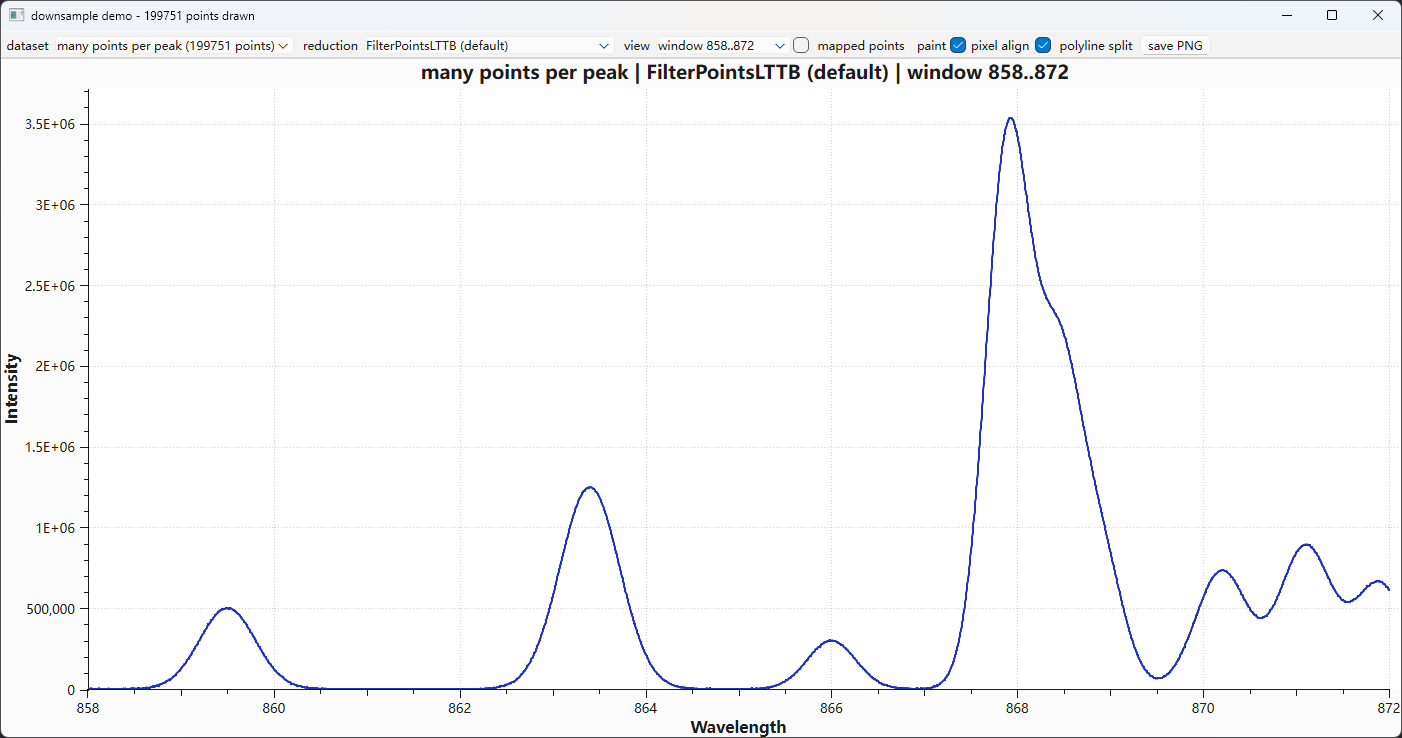
The toolbar controls:
- dataset:
many points per peakorfew points per peak; - reduction:
no reduction,FilterPointsLTTB(default),FilterPointsPixel,FilterPointsAdaptive, and the legacy filters; - view:
window 858..872is the zoomed peak where the effect is clearest; - mapped points: draws a red dot at every vertex that is actually painted, so you can see what the reduction kept;
- pixel align: toggles
QwtPainter::setRoundingAlignment(); - polyline split: toggles
QwtPainter::setPolylineSplitting()(unrelated to this effect, kept for comparison).
To see the difference quickly: pick many points per peak, FilterPointsLTTB (the default), window 858..872, then click pixel align on and off. On is the default and shows the staircase; off restores the smooth flank. The comparison figure at the top was produced this way. Switch the dataset to few points per peak and the same toggle changes almost nothing, because the samples are too sparse to create multi-vertex columns.
The batch mode renders the same matrix to PNG for documentation or bug reports:
1 2 | |
The two directories differ only in the global alignment switch, which makes the before/after comparison reproducible.
6. Checklist
- Dense curve looks stepped while a coarser version of the same data looks smooth? → This effect; call
QwtPainter::setRoundingAlignment(false)at startup. - Need the legacy
FilterPointsAggressive? → Keep alignment on, or migrate toFilterPointsAdaptive. - Using
FilterPointsPixeland still seeing steps? → That is the algorithm's own envelope, not the alignment switch; tryFilterPointsLTTBorFilterPointsAdaptive. - Exporting to PDF/SVG? → No action needed, export ignores alignment.
- Want to verify before changing code? →
examples/2D/downsample_demo, toggle pixel align.
Related Examples
| Example | What it shows |
|---|---|
examples/2D/downsample_demo |
Dense vs sparse spectra, all reduction attributes, live pixel-align switch |
examples/bench/renderbench |
Timing benchmark of the reduction algorithms |
examples/2D/curvesmoothing |
Removing pixel noise that survives reduction |