Axis Interaction Actions
Axis interaction actions allow users to drag and zoom axes via the mouse. This feature was not available in QWT 6 and earlier versions, and was introduced starting from QWT 7.0.5.
The design of this feature was inspired by QCustomPlot, which configures built-in interaction behaviors through the QCustomPlot::setInteractions method. For example, QCP::iMoveAxes allows dragging the selected axis, and QCP::iRangeZoom supports zooming the axis range via the scroll wheel or box selection (focusing on data). These interaction features significantly improve the user experience of charts.
Configuring QWT Axis Interaction
Starting from QWT 7.0.5, axis interaction functionality was added. This feature is implemented through the QwtPlotScaleEventDispatcher class for event dispatching, which forwards events from the plot area to the corresponding axis components. Users typically do not need to use this class directly — simply call QwtPlot::setEnableScaleBuildinActions to enable or disable axis interaction events (enabled by default in QWT7).
Once enabled, the following effects are available:
Axis Dragging
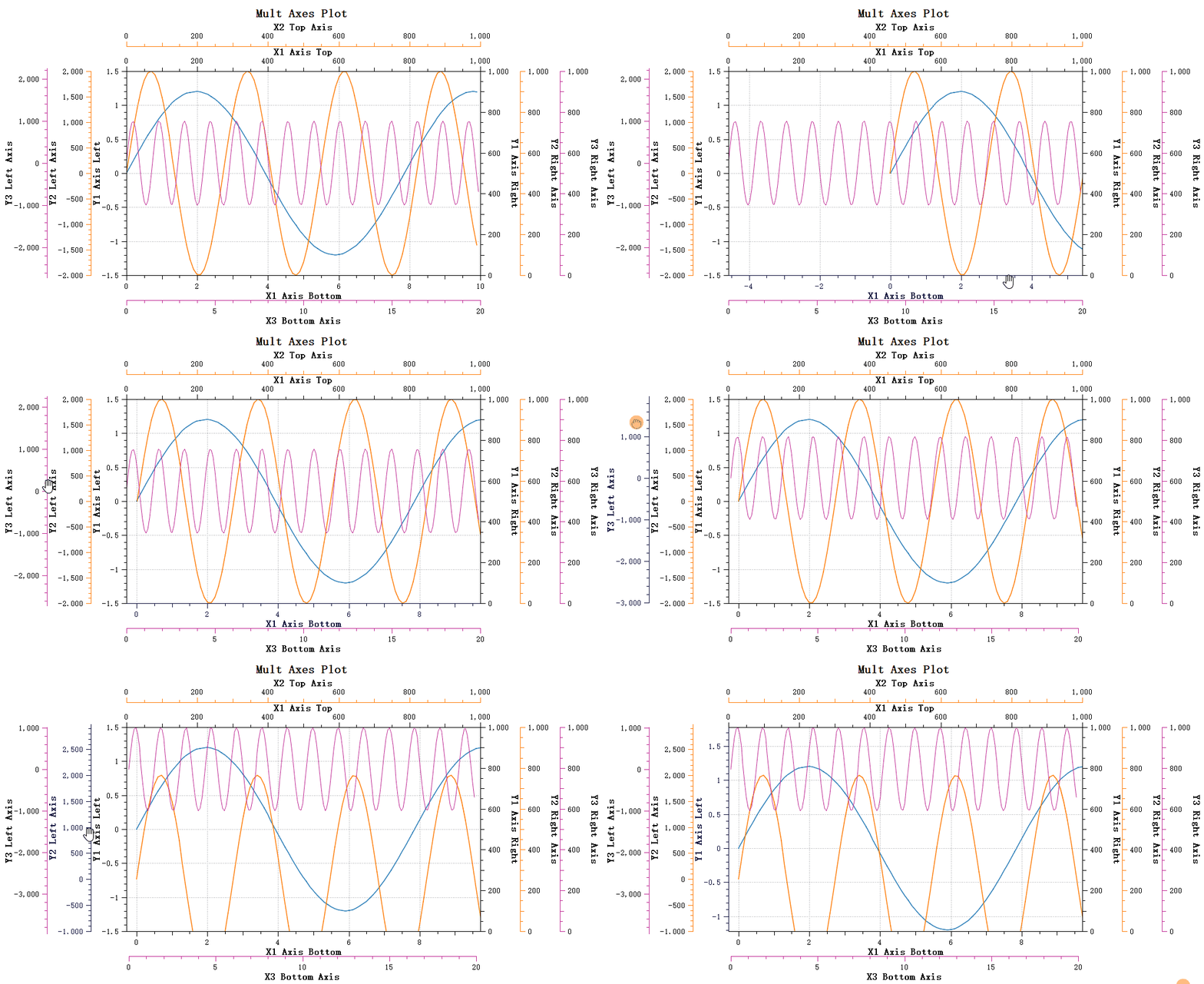
- Left-click on any axis to select it and drag it
- Right-click to deselect
- The plot area updates in real time during dragging
Axis Scroll Wheel Zoom
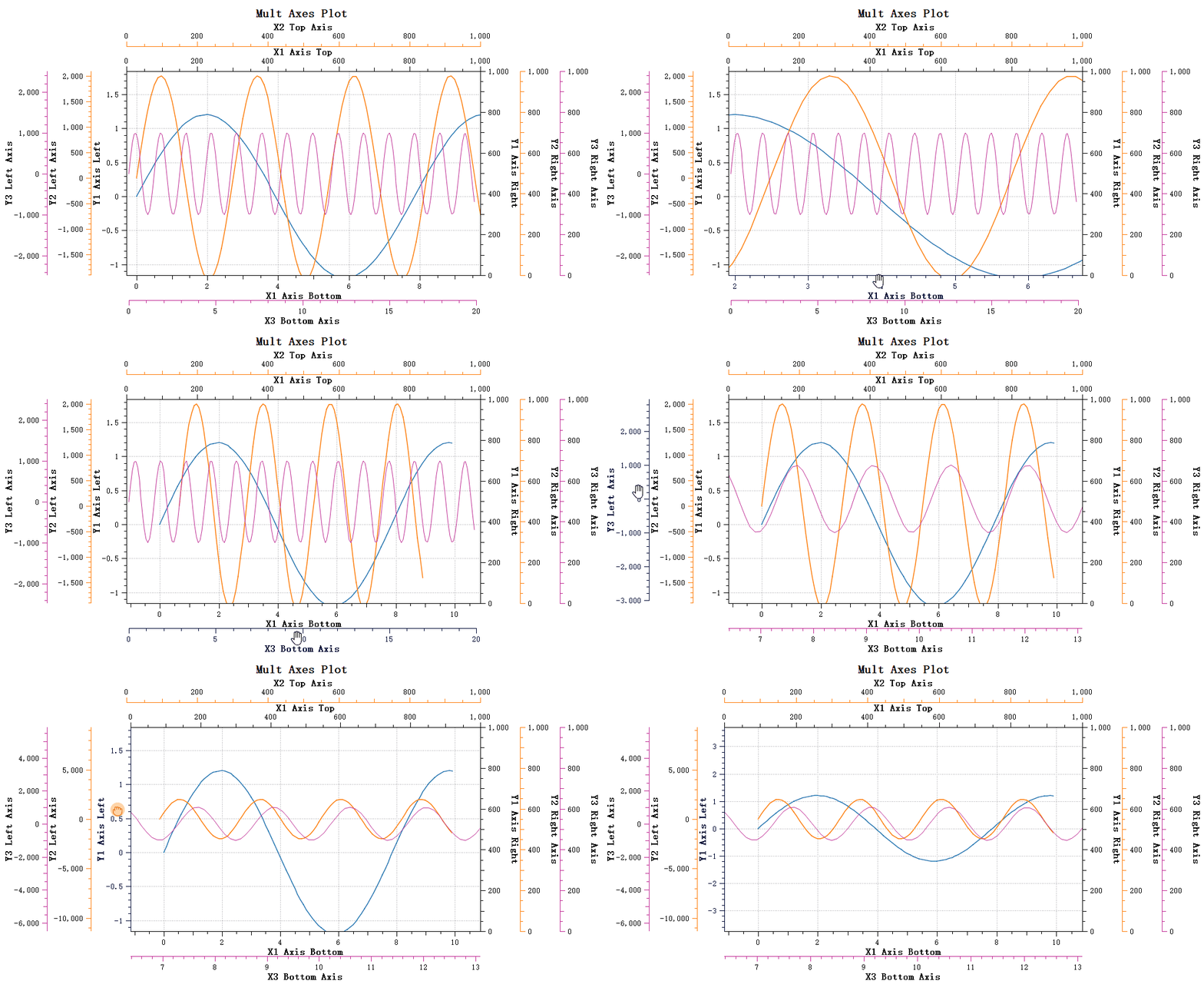
- Left-click on any axis to select it
- Scroll the mouse wheel to zoom the selected axis, with the zoom center at the current mouse position
- Right-click to deselect
Customizing Axis Interaction Behavior
You can configure the interaction behavior of each axis individually through QwtScaleWidget. QwtPlot provides a global switch, while specific settings are made on each axis component.
QwtScaleWidget uses the BuiltinActions enum to define the currently supported built-in interaction actions, which can be configured via the following functions:
1 2 3 4 5 | |
You can enable specific actions for a particular axis. For example, if you want the XBottom axis to support only dragging and not scroll wheel zoom, you can use the following code:
1 | |
The above code makes the XBottom axis support only drag operations.
Configuring Axis Selection Appearance
Before performing axis interaction operations, the target axis must be selected. Therefore, QwtScaleWidget has added selection state management functions:
1 2 3 | |
By default, left-clicking on an axis selects it, while right-clicking or clicking outside the axis area deselects it.
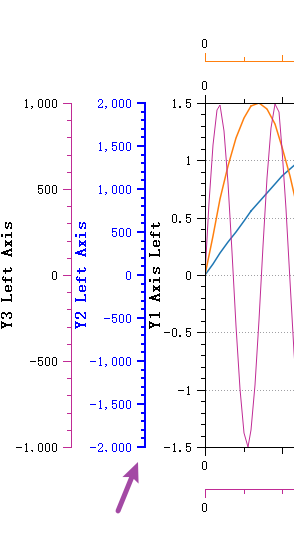
You can customize the visual appearance of QwtScaleWidget when it is selected. When an axis is selected, its text color and axis line color change to a preset selection color (blue by default):
1 2 3 | |
Additionally, you can adjust the pen width offset of the QwtScaleWidget:
1 2 3 | |
The default pen width offset is 1, meaning that when an axis is selected, the actual drawing pen width increases by this offset, making the axis line appear thicker, as shown by the arrow in the figure below: