跳转至

图例控件 - QwtLegend

QwtLegend 是绘图图例的显示控件,用于展示各绘图项的标题和图标。通过图例,用户可以识别不同曲线或数据系列的含义。

主要功能特性

  • 自动图例项生成:根据绘图项自动生成图例条目
  • 交互式图例:支持点击图例项隐藏/显示对应绘图项(需通过 setDefaultItemMode() 开启)
  • 布局:支持多种图例布局方式
  • 样式自定义:可自定义图例项的图标和文字样式

基本概念

图例位置

QwtPlot 支持四种图例位置:

位置 枚举值 说明
左侧 LeftLegend YLeft轴左侧
右侧 RightLegend YRight轴右侧
底部 BottomLegend 绘图底部
顶部 TopLegend 绘图顶部

图例项组成

每个图例项由一个小图标和绘图项标题组成,图标根据该项的线条、符号或填充样式渲染。下面的示意图给出一个典型图例的组成:

1
2
3
4
5
6
┌───────────────────────┐
│  [图标]  曲线标题      │  ← 图例项
│  ────  数据曲线A      │
│  ▬▬▬  数据曲线B      │
│  ○○○  散点数据        │
└───────────────────────┘

使用方法

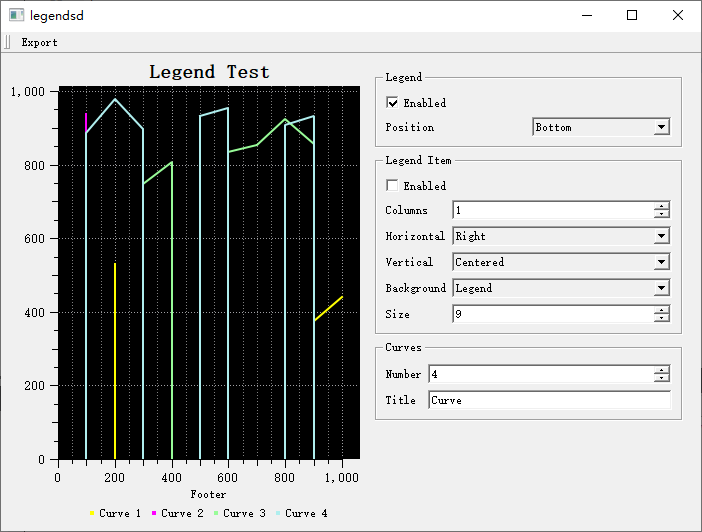
图例演示的例子位于:examples/2D/legends,例子截图如下:

Legends Demo

1. 插入图例

图例以 QwtLegend 控件的形式创建,再通过 QwtPlot::insertLegend() 交给绘图;第二个参数从四个 QwtPlot::LegendPosition 值(LeftLegend、RightLegend、BottomLegend、TopLegend,默认 RightLegend)中选择。下面的例子在右侧插入图例:

 1
 2
 3
 4
 5
 6
 7
 8
 9
10
11
12
13
#include <QwtPlot>
#include <QwtLegend>

QwtPlot* plot = new QwtPlot();

// 创建图例并插入
QwtLegend* legend = new QwtLegend();
plot->insertLegend(legend, QwtPlot::RightLegend);  // 右侧图例

// 其他位置选项:
// QwtPlot::LeftLegend   - 左侧
// QwtPlot::BottomLegend - 底部
// QwtPlot::TopLegend    - 顶部

2. 图例交互

图例项默认是只读的(QwtLegendData::ReadOnly)。交互通过 QwtLegend::setDefaultItemMode() 开启;Checkable 模式的图例会发出 checked() 信号,通常连接到槽里,用 QwtPlot::infoToItem() 切换对应绘图项的可见性:

 1
 2
 3
 4
 5
 6
 7
 8
 9
10
11
12
13
14
#include <QwtLegendData>

// 让图例条目可勾选(模式:ReadOnly、Clickable、Checkable)
legend->setDefaultItemMode(QwtLegendData::Checkable);

// 勾选/取消勾选时切换对应绘图项的显示状态
QObject::connect(legend, &QwtLegend::checked, plot,
    [plot](const QVariant& itemInfo, bool on, int) {
        if (QwtPlotItem* plotItem = plot->infoToItem(itemInfo))
            plotItem->setVisible(on);
    });

// Clickable 模式则发出 clicked(itemInfo, index) 信号,
// 具体响应完全由应用程序决定。

3. 设置图例位置和比例

图例占比决定图例可以占用绘图宽度或高度的比例。它既可作为 insertLegend() 的第三个参数直接传入,也可以事后通过 QwtPlotLayout::setLegendPosition() 与 setLegendRatio() 调整。下面的例子先为右侧图例保留 20% 宽度,再把它移到底部并占 15%:

1
2
3
4
5
6
7
// 设置图例位置和占比
plot->insertLegend(legend, QwtPlot::RightLegend, 0.2);  // 右侧,占20%宽度

// 通过布局调整
QwtPlotLayout* layout = plot->plotLayout();
layout->setLegendPosition(QwtPlot::BottomLegend);
layout->setLegendRatio(0.15);  // 图例占15%

4. 图例样式配置

QwtLegend 是普通的 Qt 控件,可以用 setFont() 设置字体、用样式表设置背景与边框。单个图例条目是位于 contentsWidget() 内的 QwtLegendLabel 控件(QwtTextLabel 子类),可以通过 legendWidget()/legendWidgets() 按绘图项查找,也可以批量定制。下面的例子演示这三个层面的定制:

 1
 2
 3
 4
 5
 6
 7
 8
 9
10
11
12
13
14
15
16
17
18
#include <QwtLegendLabel>

// 设置图例字体
legend->setFont(QFont("Arial", 9));

// 设置图例背景
legend->setStyleSheet("background-color: white; border: 1px solid gray;");

// 设置图例项样式:条目都是 contentsWidget() 的子控件
const QList<QwtLegendLabel*> labels =
    legend->contentsWidget()->findChildren<QwtLegendLabel*>();
for (QwtLegendLabel* label : labels)
    label->setFont(QFont("Arial", 10));

// 单个条目可以通过对应绘图项的 item info 查找
//(curve 为任意挂载到 plot 上的 QwtPlotItem)
QwtLegendLabel* label = qobject_cast<QwtLegendLabel*>(
    legend->legendWidget(plot->itemToInfo(curve)));

5. 绘图项的图例属性

控制绘图项在图例中的显示样式:

 1
 2
 3
 4
 5
 6
 7
 8
 9
10
11
#include <QwtPlotCurve>

QwtPlotCurve* curve = new QwtPlotCurve("曲线A");

// 设置图例属性
curve->setLegendAttribute(QwtPlotCurve::LegendShowLine, true);    // 显示线条图标
curve->setLegendAttribute(QwtPlotCurve::LegendShowSymbol, true);  // 显示符号图标
curve->setLegendAttribute(QwtPlotCurve::LegendShowBrush, true);   // 显示填充图标

// 设置图例图标大小
curve->setLegendIconSize(QSize(20, 15));

6. 自定义图例图标

图例图标由虚方法 QwtPlotItem::legendIcon() 生成,派生类可以重写它绘制完全自定义的图标;图标尺寸则通过 setLegendIconSize() 控制。下面的代码设置了更大的图标尺寸,并指出自定义绘制的切入点:

1
2
3
4
5
// 完全自定义图例图标
curve->setLegendIconSize(QSize(30, 20));

// 图例图标由QwtPlotItem::legendIcon()方法生成
// 可以在派生类中重写此方法实现自定义图标

7. 外部图例控件

图例可以放在绘图外部。QwtPlot 没有专门的“连接外部图例”方法。做法是把绘图的 legendDataChanged() 信号连接到外部 QwtLegend 的 updateLegend() 槽,再用 QwtPlot::updateLegend() 填充当前绘图项:

 1
 2
 3
 4
 5
 6
 7
 8
 9
10
11
12
13
// 创建外部图例
QwtLegend* externalLegend = new QwtLegend(parentWidget);

// 将绘图的 legendDataChanged() 信号连接到外部图例的 updateLegend() 槽
QObject::connect(plot, &QwtPlot::legendDataChanged,
    externalLegend, &QwtLegend::updateLegend);

// 用当前绘图项填充新图例
plot->updateLegend();

externalLegend->show();

// 图例会自动更新,但不会占用绘图空间

8. 内嵌图例项

使用 QwtPlotLegendItem 在画布内显示图例。位置通过 setAlignmentInCanvas() 用标准 Qt::Alignment 标志选择:

 1
 2
 3
 4
 5
 6
 7
 8
 9
10
11
12
13
14
15
16
17
18
19
20
21
22
#include <QwtPlotLegendItem>

// 创建内嵌图例(绘制在画布上)
QwtPlotLegendItem* legendItem = new QwtPlotLegendItem();
legendItem->attach(plot);

// 在画布内对齐(此处为右上角)
legendItem->setAlignmentInCanvas(Qt::AlignRight | Qt::AlignTop);
// 其他组合:Qt::AlignLeft|Qt::AlignTop(左上)、
// Qt::AlignLeft|Qt::AlignBottom、Qt::AlignRight|Qt::AlignBottom 等

// 可选:与画布边框的像素偏移
legendItem->setOffsetInCanvas(Qt::Horizontal | Qt::Vertical, 10);

// 设置背景
legendItem->setBackgroundBrush(QBrush(Qt::white));

// 设置边框
legendItem->setBorderPen(QPen(Qt::gray, 1));

// 设置最大列数
legendItem->setMaxColumns(1);

核心方法总结

QwtPlot图例方法

方法 说明
insertLegend() 插入图例(位置与占比作为参数)
legend() 返回当前图例
legendDataChanged() 用于驱动外部图例的信号
updateLegend() 发出所有绘图项的图例数据
itemToInfo() / infoToItem() 绘图项与图例 item info 的相互转换

QwtLegend方法

方法 说明
setDefaultItemMode() 设置交互模式(QwtLegendData::ReadOnly/Clickable/Checkable)
setMaxColumns() 设置最大列数
legendWidget() / legendWidgets() 返回某绘图项对应的条目控件
itemInfo() 返回条目控件对应的 item info
contentsWidget() 返回容纳所有条目的控件
clicked() / checked() 交互信号

QwtPlotItem图例方法

方法 说明
setItemAttribute() 在图例中显示/隐藏该项(QwtPlotItem::Legend)
setLegendIconSize() 设置图标大小
legendIcon() 返回图例图标(派生类可重写)
setTitle() 设置标题(图例文字)

说明 setLegendAttribute()(LegendShowLine/LegendShowSymbol/LegendShowBrush)是 QwtPlotCurve 的方法,控制曲线如何渲染自己的图例图标。

提示 — 图例使用建议

  • 少量曲线(<5条):右侧图例
  • 多量曲线(5-10条):底部图例
  • 大量曲线(>10条):考虑使用内嵌图例或分组显示

示例 — 相关示例

  • 图例演示:examples/2D/legends