图例控件 - QwtLegend
QwtLegend 是绘图图例的显示控件,用于展示各绘图项的标题和图标。通过图例,用户可以识别不同曲线或数据系列的含义。
主要功能特性
特性
- ✅ 自动图例项生成:根据绘图项自动生成图例条目
- ✅ 交互式图例:支持点击图例项隐藏/显示对应绘图项
- ✅ 灵活布局:支持多种图例布局方式
- ✅ 样式自定义:可自定义图例项的图标和文字样式
基本概念
图例位置
QwtPlot 支持四种图例位置:
| 位置 |
枚举值 |
说明 |
| 左侧 |
LeftLegend |
YLeft轴左侧 |
| 右侧 |
RightLegend |
YRight轴右侧 |
| 底部 |
BottomLegend |
绘图底部 |
| 顶部 |
TopLegend |
绘图顶部 |
图例项组成
| ┌───────────────────────┐
│ [图标] 曲线标题 │ ← 图例项
│ ──── 数据曲线A │
│ ▬▬▬ 数据曲线B │
│ ○○○ 散点数据 │
└───────────────────────┘
|
使用方法
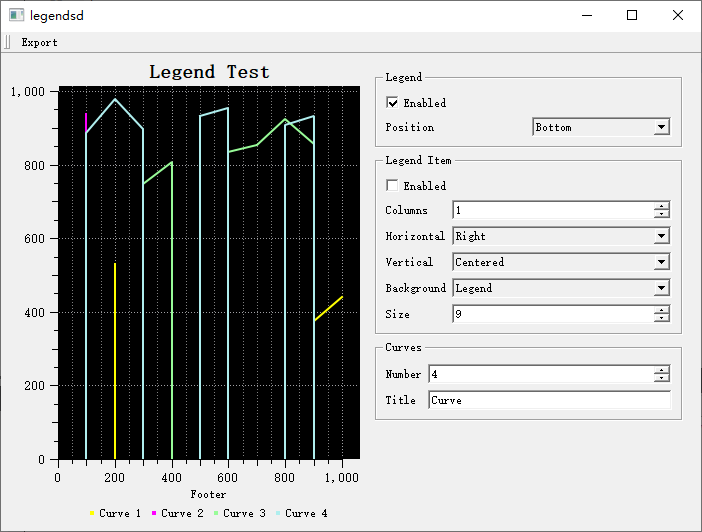
图例演示的例子位于:examples/2D/legends,例子截图如下:
1. 插入图例
1
2
3
4
5
6
7
8
9
10
11
12
13 | #include <QwtPlot>
#include <QwtLegend>
QwtPlot* plot = new QwtPlot();
// 创建图例并插入
QwtLegend* legend = new QwtLegend();
plot->insertLegend(legend, QwtPlot::RightLegend); // 右侧图例
// 其他位置选项:
// QwtPlot::LeftLegend - 左侧
// QwtPlot::BottomLegend - 底部
// QwtPlot::TopLegend - 顶部
|
2. 图例交互
默认情况下,点击图例项可以切换对应绘图项的显示状态:
| // 启用/禁用图例点击交互
legend->setItemMode(QwtLegend::ClickableItem); // 可点击(默认)
// 或 legend->setItemMode(QwtLegend::ReadOnlyItem); // 只读模式
// 点击图例项的效果:
// - 切换对应绘图项的显示状态(显示/隐藏)
// - 图例项图标会同步显示/隐藏状态
|
3. 设置图例位置和比例
| // 设置图例位置和占比
plot->insertLegend(legend, QwtPlot::RightLegend, 0.2); // 右侧,占20%宽度
// 通过布局调整
QwtPlotLayout* layout = plot->plotLayout();
layout->setLegendPosition(QwtPlot::BottomLegend);
layout->setLegendRatio(0.15); // 图例占15%
|
4. 图例样式配置
| // 设置图例字体
legend->setFont(QFont("Arial", 9));
// 设置图例背景
legend->setStyleSheet("background-color: white; border: 1px solid gray;");
// 设置图例项样式
for (int i = 0; i < legend->itemCount(); i++) {
QWidget* item = legend->item(i);
item->setFont(QFont("Arial", 10));
}
|
5. 绘图项的图例属性
控制绘图项在图例中的显示样式:
| #include <QwtPlotCurve>
QwtPlotCurve* curve = new QwtPlotCurve("曲线A");
// 设置图例属性
curve->setLegendAttribute(QwtPlotCurve::LegendShowLine, true); // 显示线条图标
curve->setLegendAttribute(QwtPlotCurve::LegendShowSymbol, true); // 显示符号图标
curve->setLegendAttribute(QwtPlotCurve::LegendShowBrush, true); // 显示填充图标
// 设置图例图标大小
curve->setLegendIconSize(QSize(20, 15));
|
6. 自定义图例图标
| // 完全自定义图例图标
curve->setLegendIconSize(QSize(30, 20));
// 图例图标由QwtPlotItem::legendIcon()方法生成
// 可以在派生类中重写此方法实现自定义图标
|
7. 外部图例控件
图例可以放在绘图外部:
| // 创建外部图例
QwtLegend* externalLegend = new QwtLegend(parentWidget);
// 连接绘图和图例
plot->connectExternalLegend(externalLegend);
// 图例会自动更新,但不会占用绘图空间
|
8. 内嵌图例项
使用 QwtPlotLegendItem 在画布内显示图例:
 1
 2
 3
 4
 5
 6
 7
 8
 9
10
11
12
13
14
15
16
17
18 | #include <QwtPlotLegendItem>
// 创建内嵌图例(绘制在画布上)
QwtPlotLegendItem* legendItem = new QwtPlotLegendItem();
legendItem->attach(plot);
// 设置位置(画布相对坐标)
legendItem->setPosition(QwtPlotLegendItem::TopRight); // 右上角
// 其他位置:TopLeft, BottomLeft, BottomRight, Right, Left
// 设置背景
legendItem->setBackgroundBrush(QBrush(Qt::white));
// 设置边框
legendItem->setBorderPen(QPen(Qt::gray, 1));
// 设置最大宽度(像素)
legendItem->setMaxColumns(1);
|
核心方法总结
QwtPlot图例方法
| 方法 |
说明 |
insertLegend() |
插入图例 |
connectExternalLegend() |
连接外部图例 |
QwtLegend方法
| 方法 |
说明 |
setItemMode() |
设置交互模式 |
itemCount() |
获取图例项数量 |
item() |
获取图例项控件 |
QwtPlotItem图例方法
| 方法 |
说明 |
setLegendAttribute() |
设置图例属性 |
setLegendIconSize() |
设置图标大小 |
setTitle() |
设置标题(图例文字) |
图例使用建议
- 少量曲线(<5条):右侧图例
- 多量曲线(5-10条):底部图例
- 大量曲线(>10条):考虑使用内嵌图例或分组显示