Customize Your Theme
- ✅ Full QSS customization: Deeply customize all visual elements — colors, borders, fonts — via Qt StyleSheet
- ✅ Native frame mode: UseNativeFrame flag enables system border, suited for no-custom-titlebar scenarios
- ✅ QSS scoping: QSS is applied via
setStyleSheet()on SARibbonMainWindow — callingsetRibbonTheme()after a customsetStyleSheet()replaces your custom QSS (see scoping section below) - ✅ 83 QSS selectors: Covers every SARibbon component with per-theme availability across all 10 built-in themes (6 templates + 10 palettes)
- ✅ Built-in theme reference:
src/SARibbonBar/resource/templates/provides 6 QSS templates andsrc/SARibbonBar/resource/palettes/provides 10 palette JSON files as modification base - ✅ JSON palette customization: change colors without editing QSS — see JSON Theme Configuration Guide for the full palette schema and examples
QSS Selector-Component Mapping
When writing custom QSS, you need to understand the selector-to-component hierarchy:
flowchart TD
    A[SARibbonBar] --> B[SARibbonTabBar]
    A --> C[SARibbonCategory]
    A --> D[SARibbonQuickAccessBar]
    A --> E[SARibbonButtonGroupWidget]
    A --> F[SARibbonApplicationButton]
    B --> G["SARibbonTabBar::tab"]
    C --> H[SARibbonPanel]
    C --> I[SARibbonPanelOptionButton]
    H --> J[SARibbonToolButton]
    H --> K[SARibbonGallery]
    J --> L["SARibbonToolButton:hover"]
    J --> M["SARibbonToolButton:pressed"]
    J --> N["SARibbonToolButton:checked"]
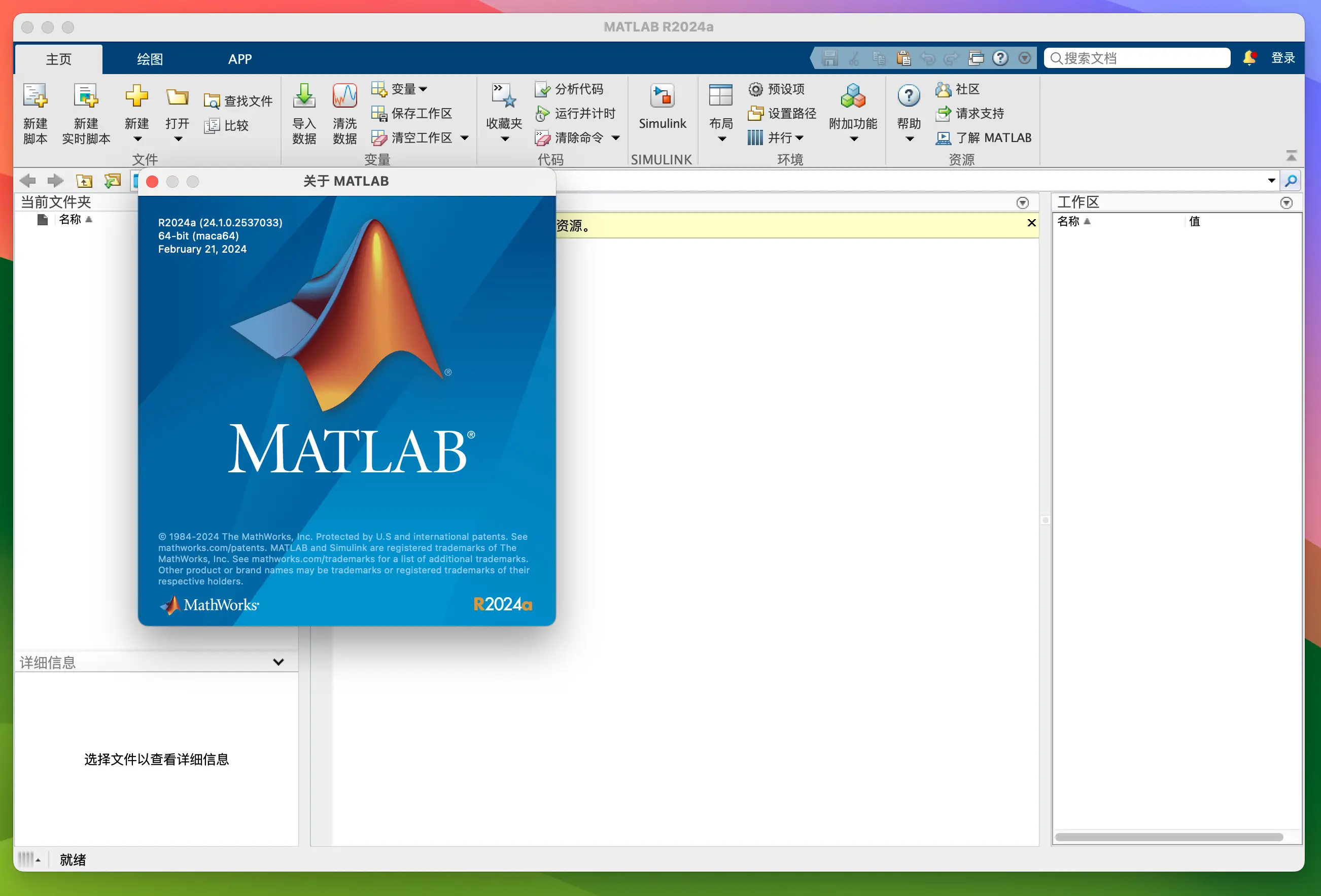
SARibbon supports custom styling through QSS (Qt StyleSheet), allowing you to create different Ribbon interface styles. This tutorial uses the Matlab 2024 Ribbon style as an example to demonstrate how to achieve a similar interface through QSS customization.
Tutorial Source Code
The source code for this tutorial is located in example/MatlabUI
Matlab 2024 Ribbon Interface Characteristics
The Matlab 2024 Ribbon interface has these design features:
- Uses native system window frame;
- No custom title bar;
- No Office-style
Application Button.
We will implement a consistent interface using SARibbon based on these characteristics.
Implementation Steps
1. Enable Native Window Frame
SARibbonMainWindow provides the SARibbonMainWindowStyleFlag::UseNativeFrame flag to enable native system frames. Once enabled, SARibbon will not draw its own title bar.
Note
This flag must be set in the constructor and cannot be changed at runtime.
1 2 3 4 5 6 7 | |
2. Set Compact Layout
The default SARibbon layout includes a title bar, suitable for frameless windows. In native frame mode, the title bar is redundant and a compact layout should be used.
Set SARibbonBar::RibbonStyleCompactThreeRow to remove the title bar and use a three-row layout:
1 2 3 4 5 6 7 8 9 | |
3. Remove Application Button
Matlab 2024 has no Application Button. SARibbon creates one by default; pass a nullptr to SARibbonBar::setApplicationButton to remove it:
1 2 3 4 5 6 7 8 9 10 | |
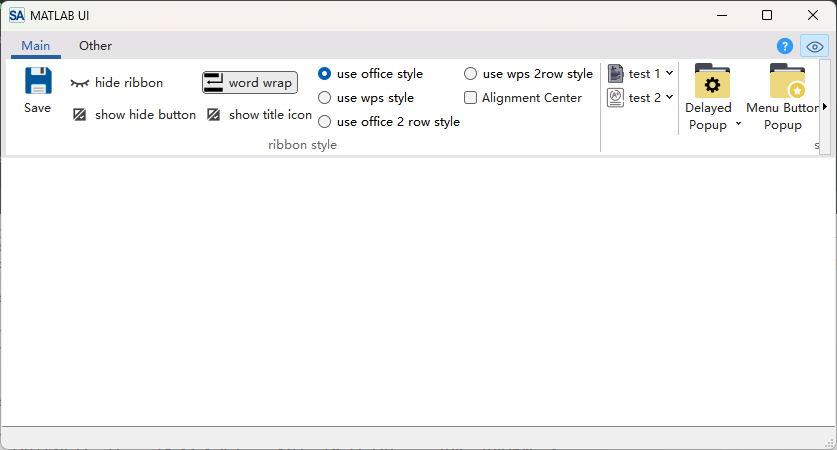
After these settings, you get a window like this (some buttons added for visual effect):
4. Adjust Left/Right Margins
SARibbonBar has a default 2px left/right padding, but Matlab has none. Set margins to zero:
1 2 3 4 5 6 7 8 9 10 | |
5. Load Custom QSS Stylesheet
Add a theme-matlab.qss file to your project resources, then load and apply it in the MainWindow constructor:
1 2 3 4 5 6 7 8 9 10 11 12 13 14 15 | |
Note
Line 13 uses QTimer::singleShot to defer setStyleSheet until after the constructor finishes, ensuring the UI is fully initialized before applying styles.
SARibbon QSS Styling
For custom SARibbon themes, refer to the built-in theme templates located in src/SARibbonBar/resource/templates/ and palettes in src/SARibbonBar/resource/palettes/.
1. Define Base Colors
Before writing QSS, determine the primary colors based on the Matlab 2024 interface:
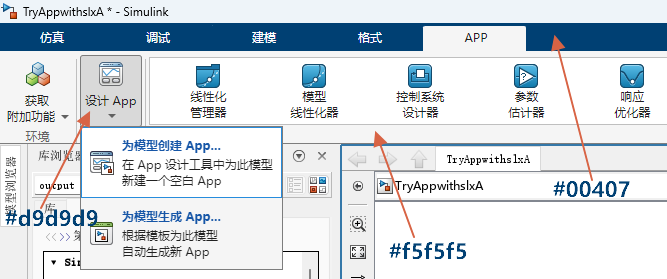
| Element | Color |
|---|---|
| Tab bar background | #004076 |
| Category background | #f5f5f5 |
| Text color | black |
| Button default background | #f5f5f5 |
| Button hover/selected | #d9d9d9 |
2. QSS for SARibbonBar Background
1 2 3 4 5 | |
3. QSS for Category Background
1 2 3 | |
4. QSS for SARibbonToolButton
SARibbonToolButton QSS Notes
Set SARibbonToolButton's default background to match the Category background (e.g., #f5f5f5), not transparent. Using transparent causes visual issues in MenuButtonPopup mode.
1 2 3 4 5 6 7 8 9 10 11 12 13 14 15 16 17 | |
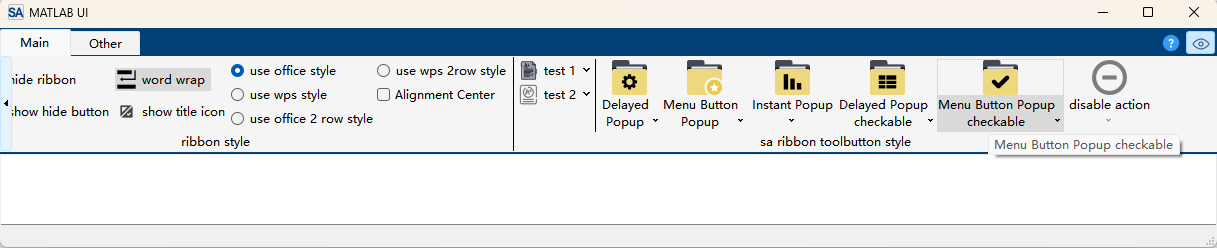
5. QSS for Tab Bar
1 2 3 4 5 6 7 8 9 10 11 12 13 14 15 16 17 18 19 20 21 22 23 24 25 26 27 28 | |
Final Result
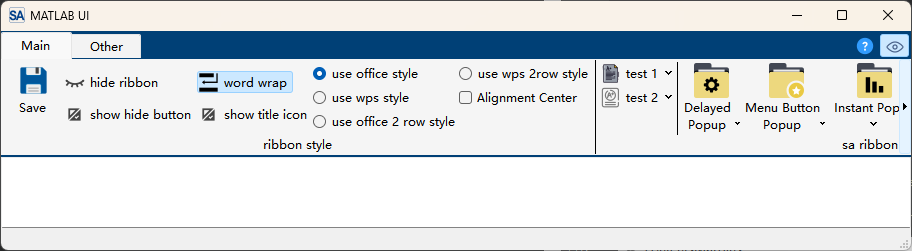
After completing the above settings, you will get a Ribbon interface similar to Matlab 2024, with native frame, compact layout, no Application Button, and unified color style.
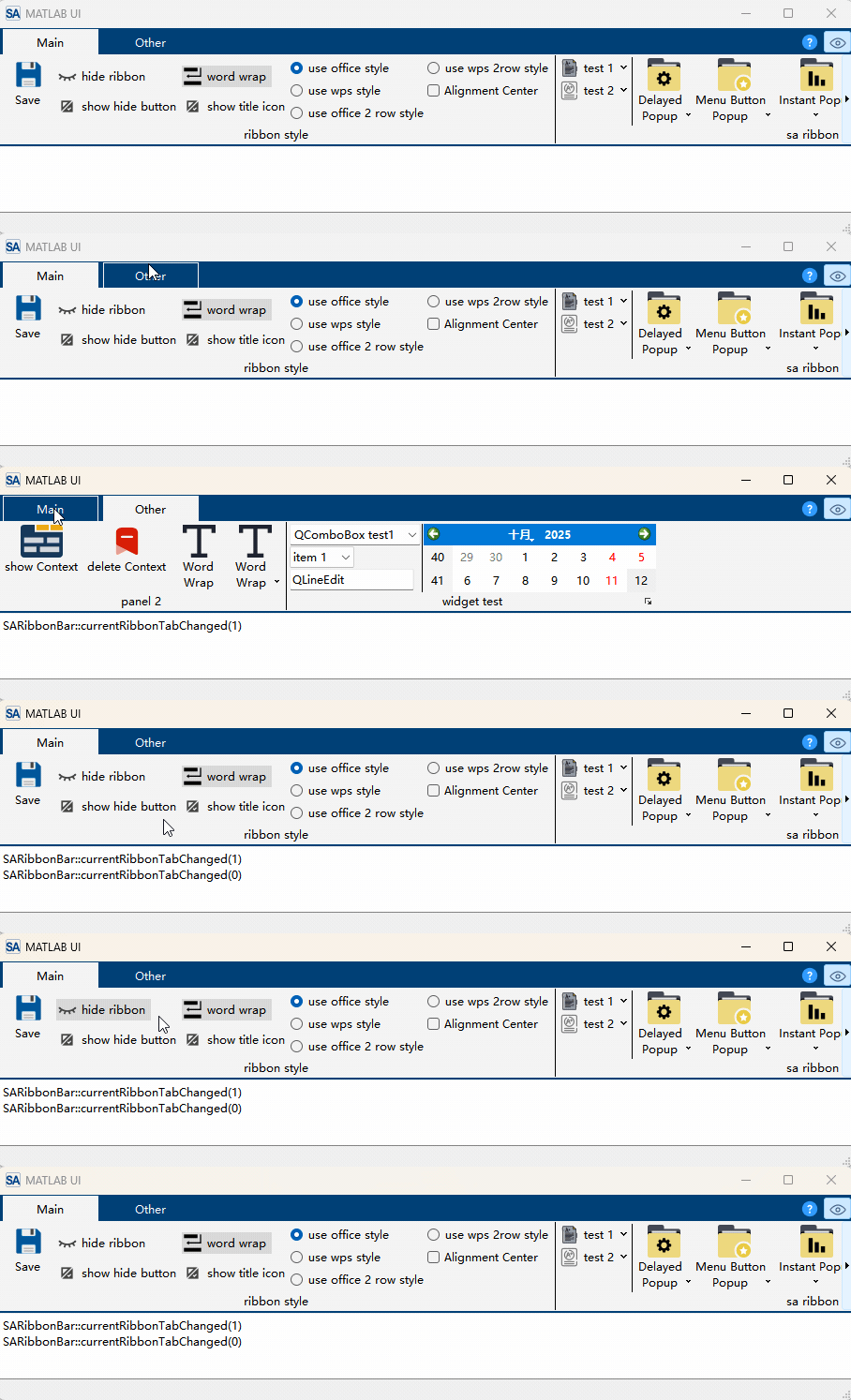
Tutorial source code is located in example/MatlabUI